Connectors
Connectors at a glance
Connect, manage and disconnect services.
Connectors link your assistant to your services: mailbox, calendar, messages, storage and more. In the “Connectors” window you see what is connected and what else you can connect.
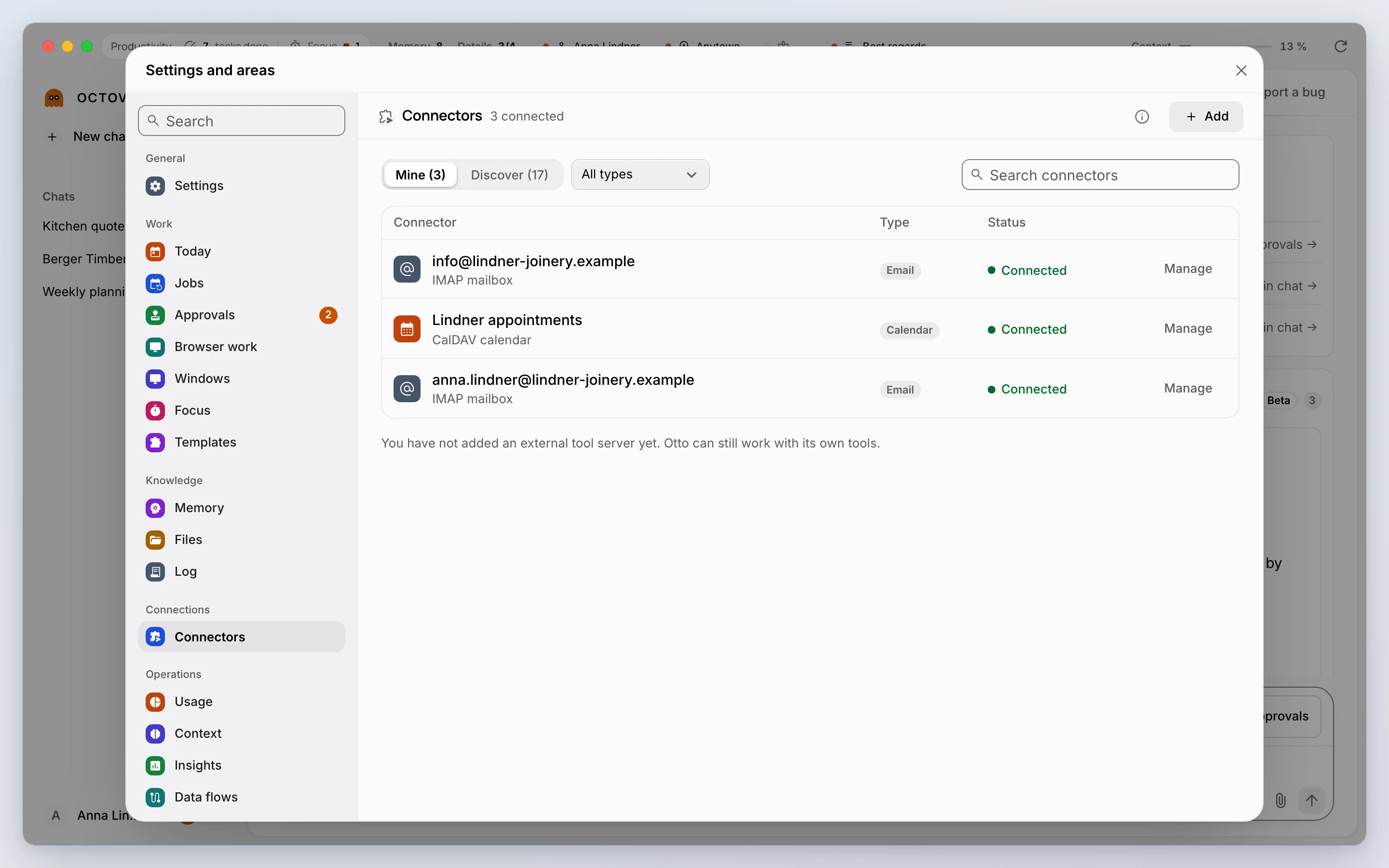
The connectors window
 Windows
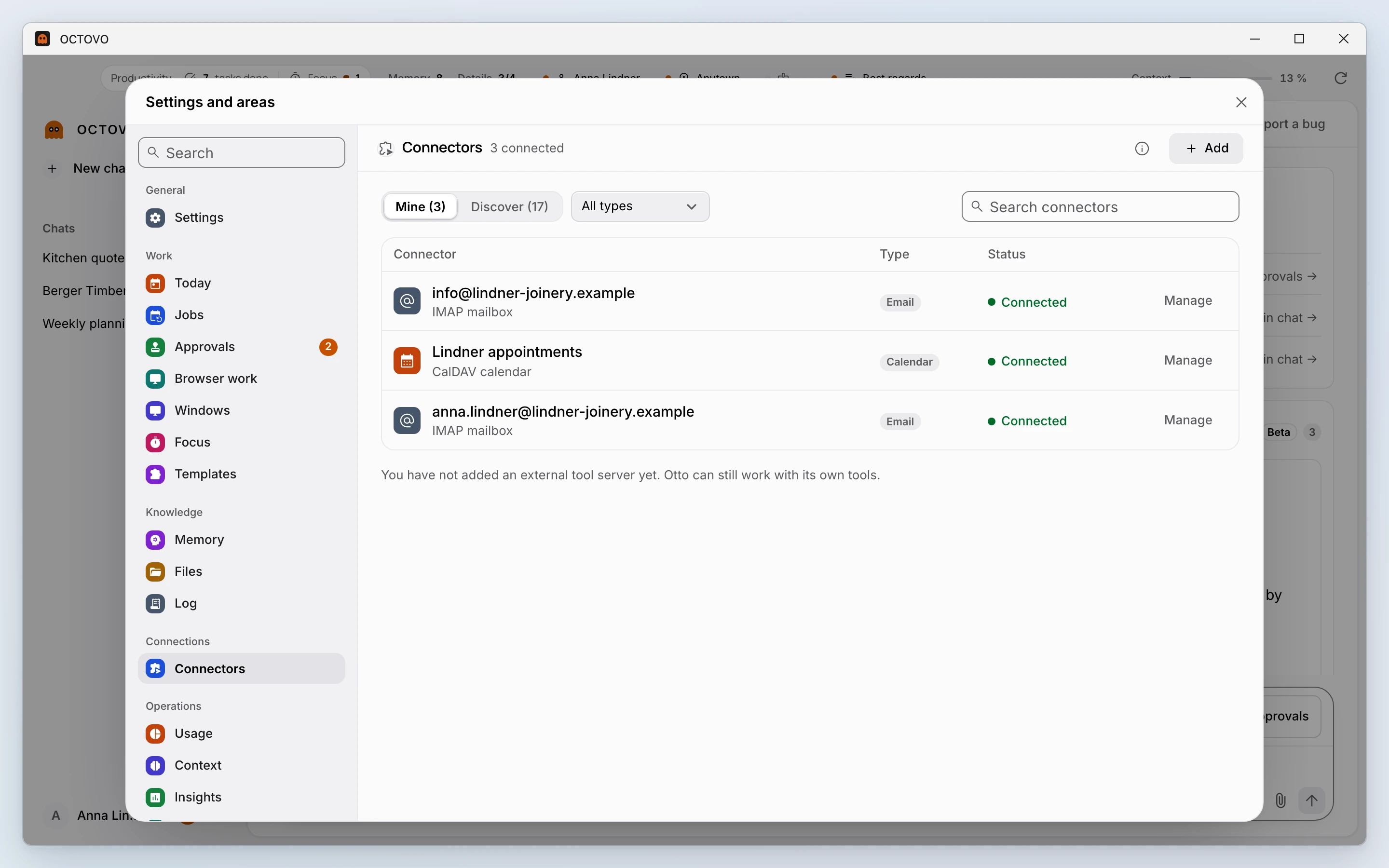
At the top you switch between “Mine” and “Discover”; the filter narrows by type.
What you see:
- Mine / Discover your connections or everything available.
- All types filter: Email, Calendar, Contacts, Messaging, Social media, Storage, Payments, MCP.
- Status Connected, Not connected, Available, Not available, Error.
- Connect / Manage sets up or opens the connection.
- Add registers your own tool server.
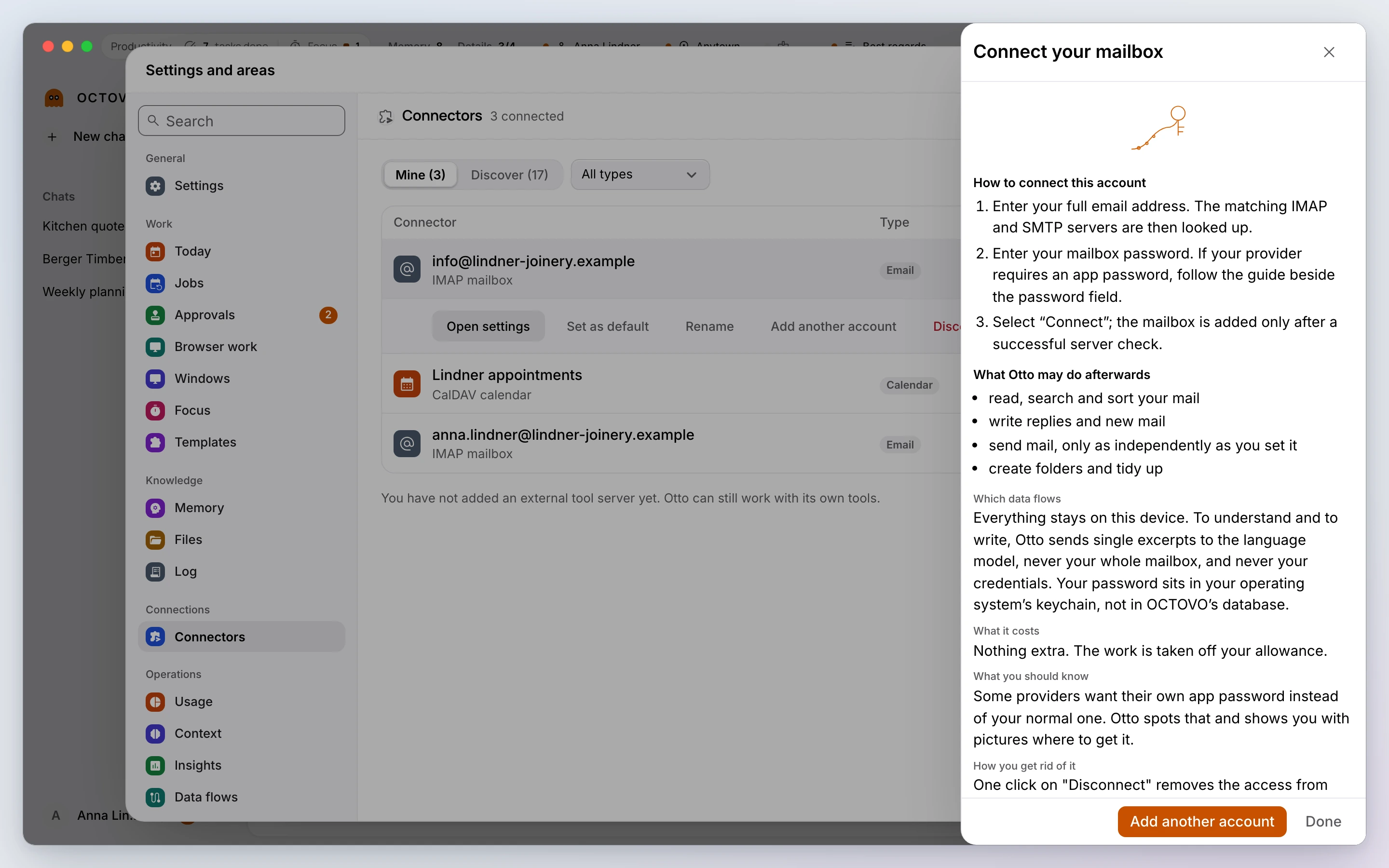
The connection dialog
 Windows
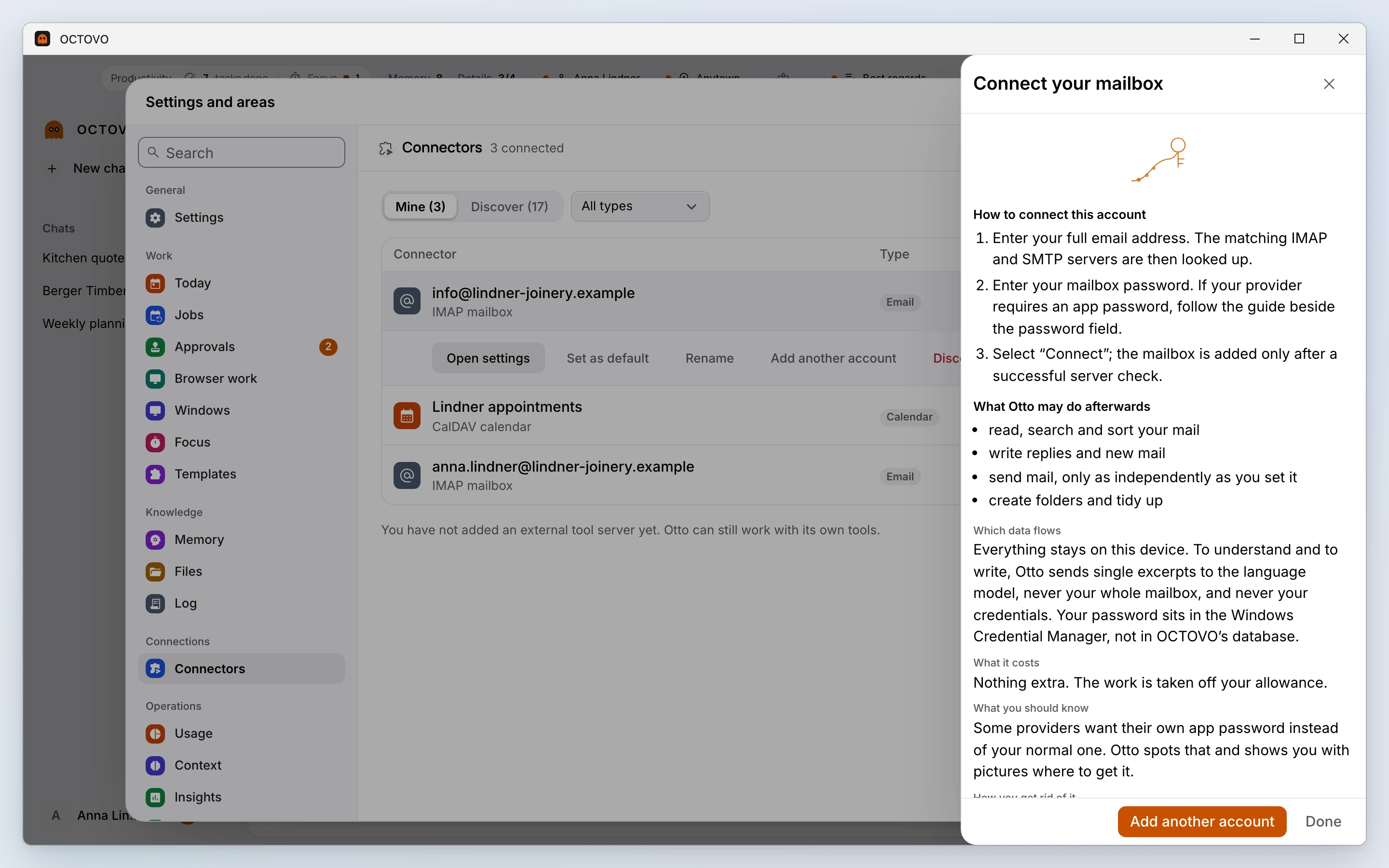
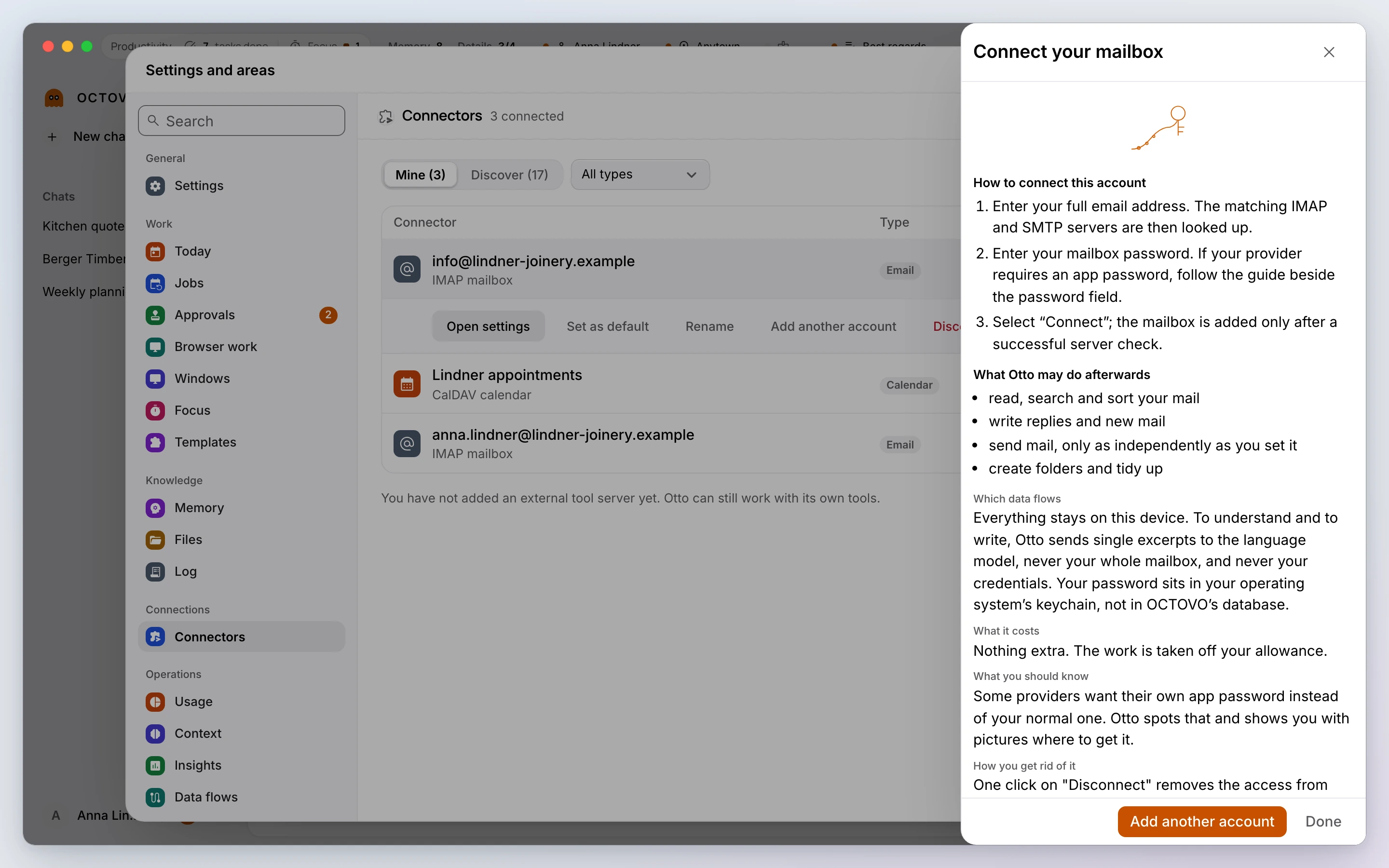
Before you connect something, the dialog explains what happens.
What you see:
- Which data flows what is exchanged between the service and your device.
- What it costs whether the provider charges anything.
- How you get rid of it how to disconnect.
- How to connect this account the steps.
Several accounts
 Windows
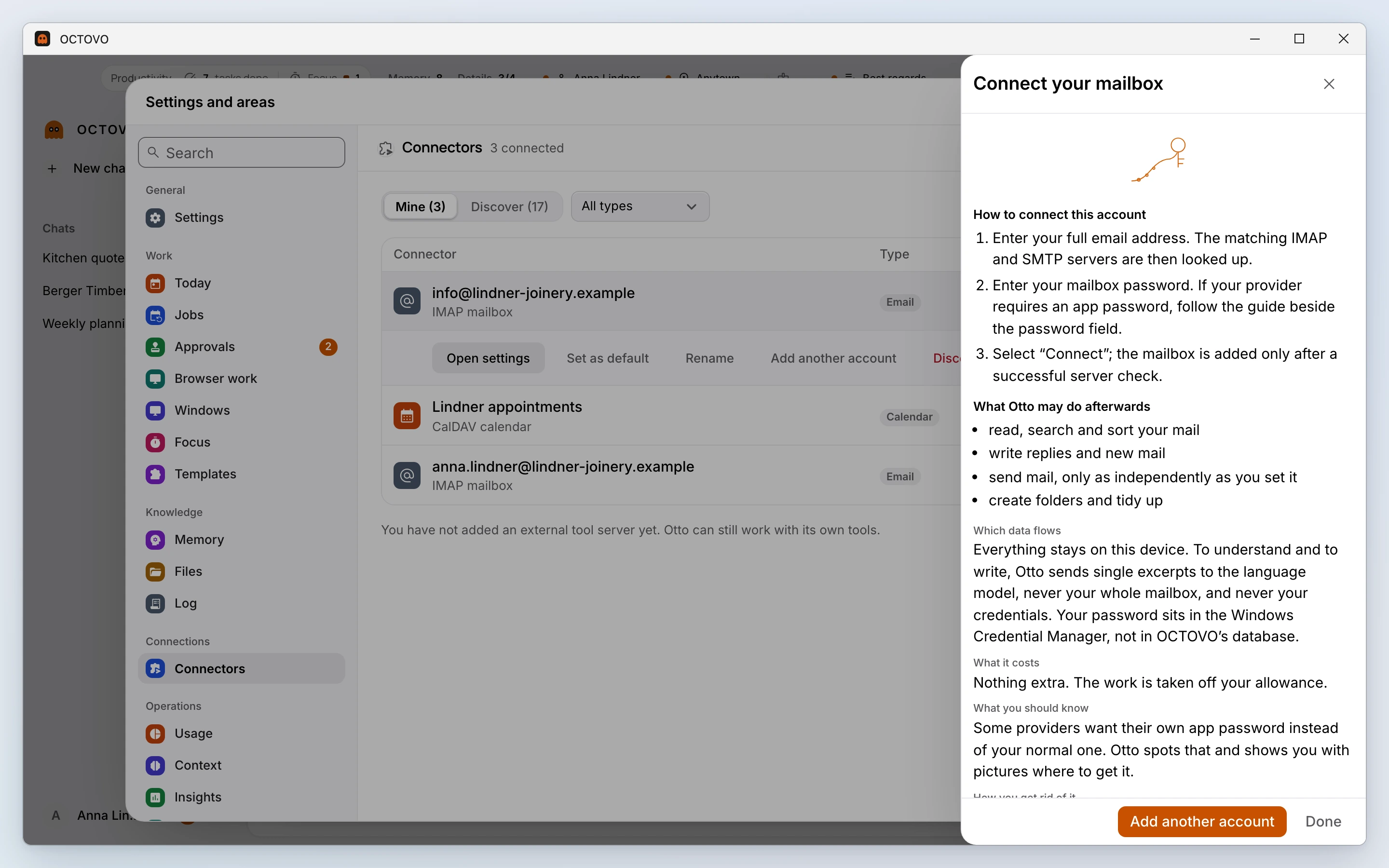
For a connected service you can add more accounts, set one as default, rename or disconnect.
What you see:
- Add another account connects an additional account.
- Set as default your assistant uses this account first.
- Rename / Disconnect changes the display name or removes the connection.
- Reconnect when a connection has expired.