Connectors
Connecting a mailbox
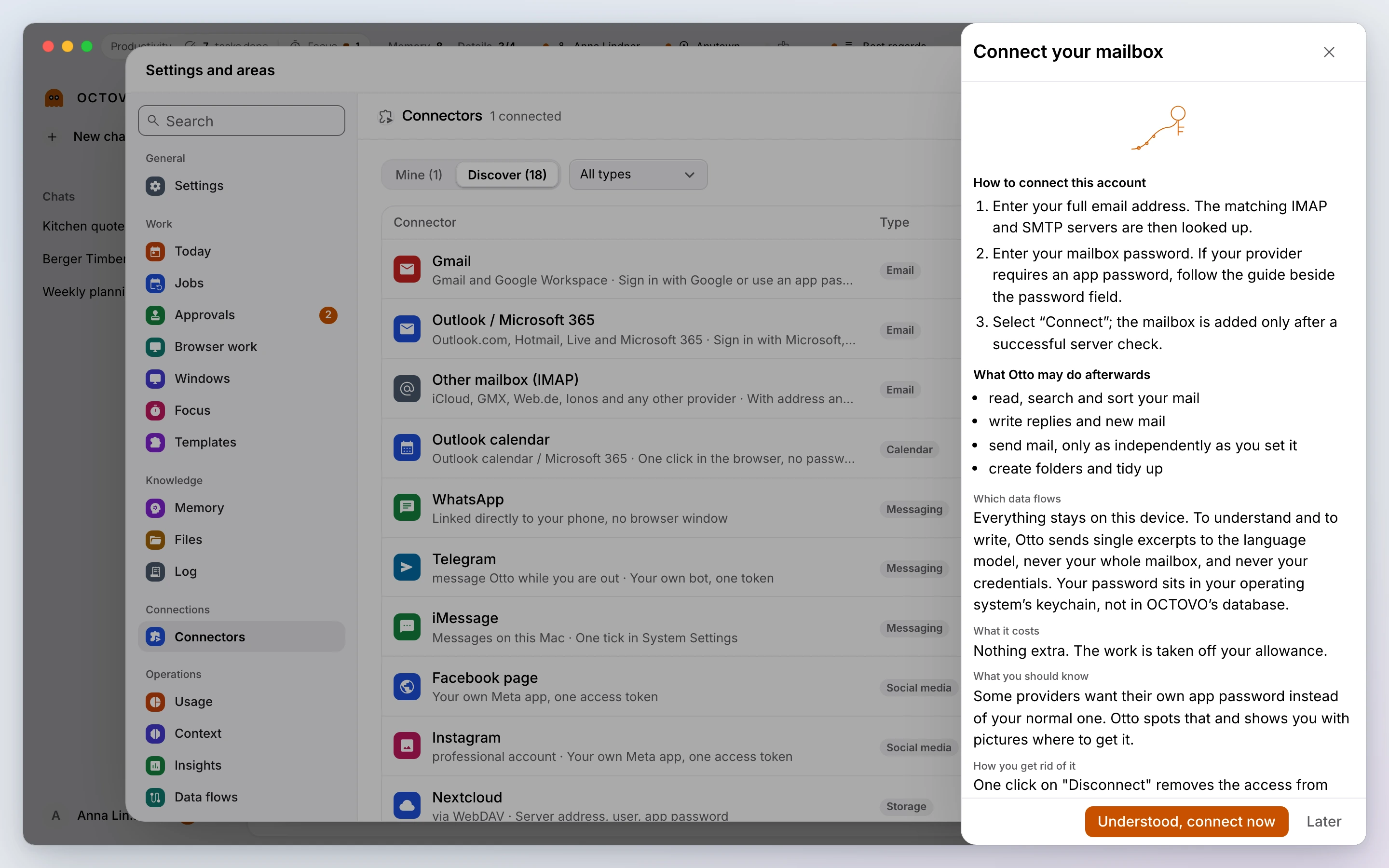
Mail via IMAP or with Microsoft sign-in.
Your assistant reads your mail directly on your device. You connect your mailbox either with address and password (IMAP) or, for Outlook and Microsoft 365, through Microsoft sign-in. Sending is blocked at first until you enable it.
Other mailbox (IMAP)
 Windows
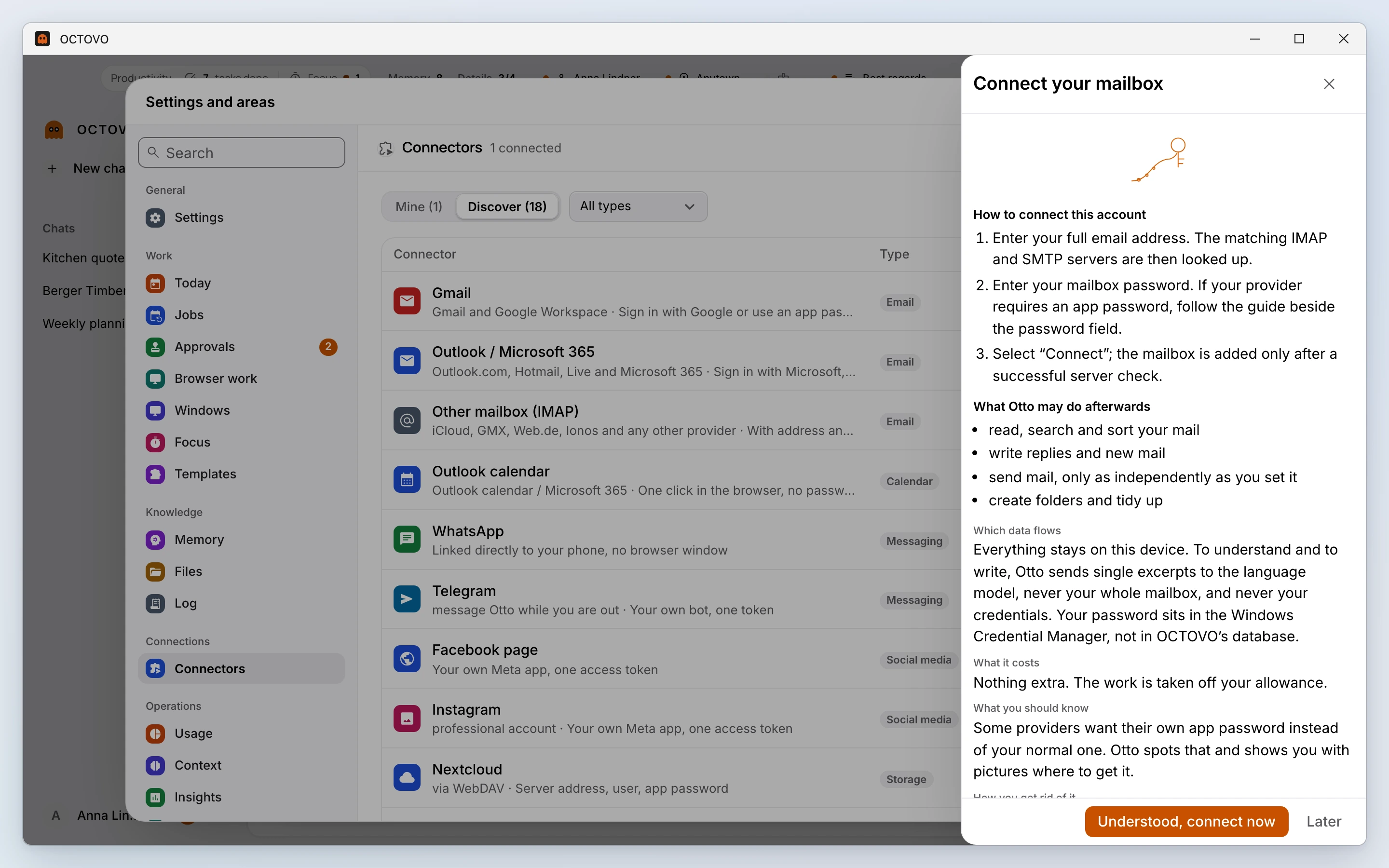
For most providers, address and password are enough. Some providers require an app password instead of your normal password.
What you see:
- Other mailbox (IMAP) with address and password.
- Email address / Password your mailbox credentials.
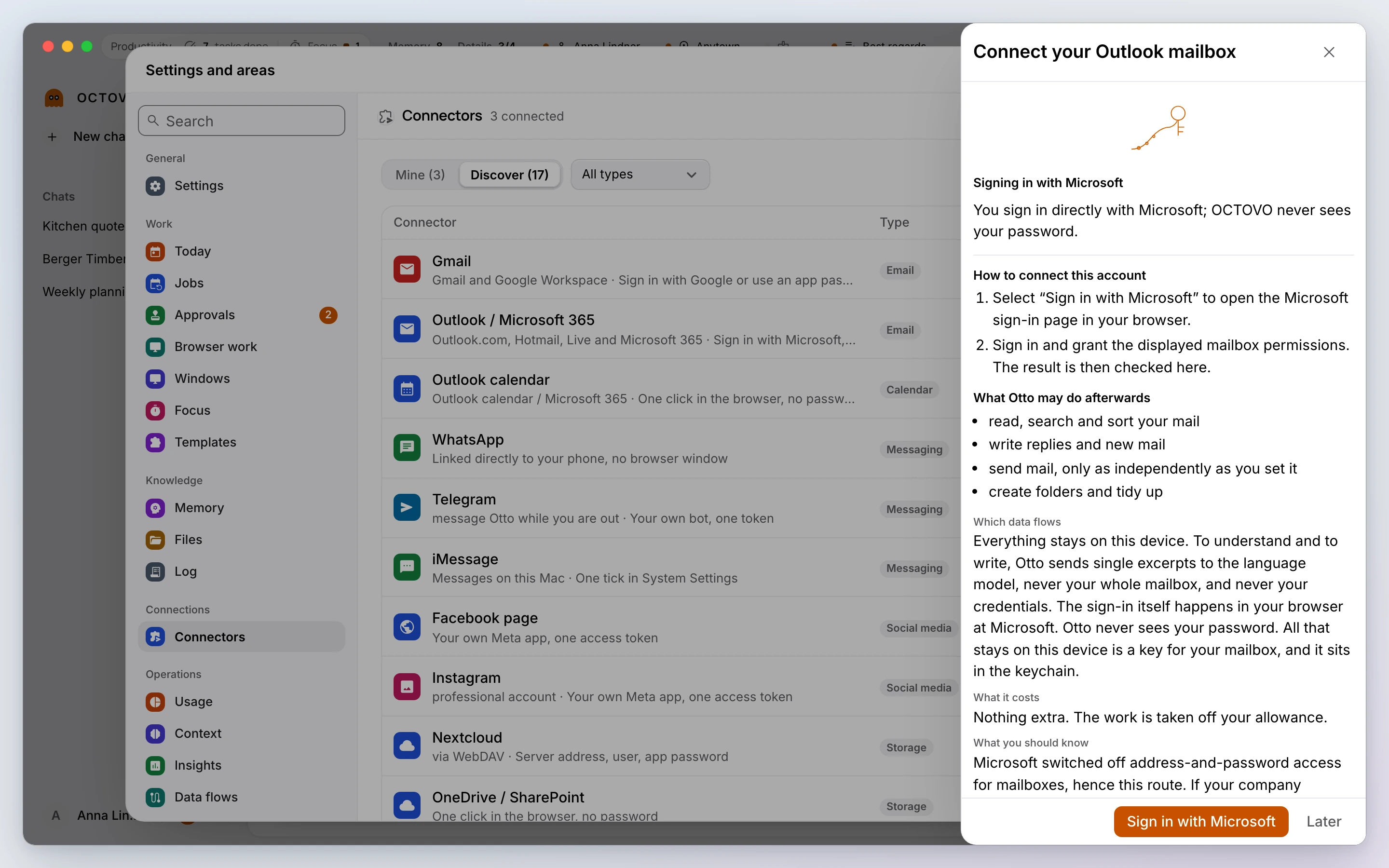
Outlook / Microsoft 365
 Windows
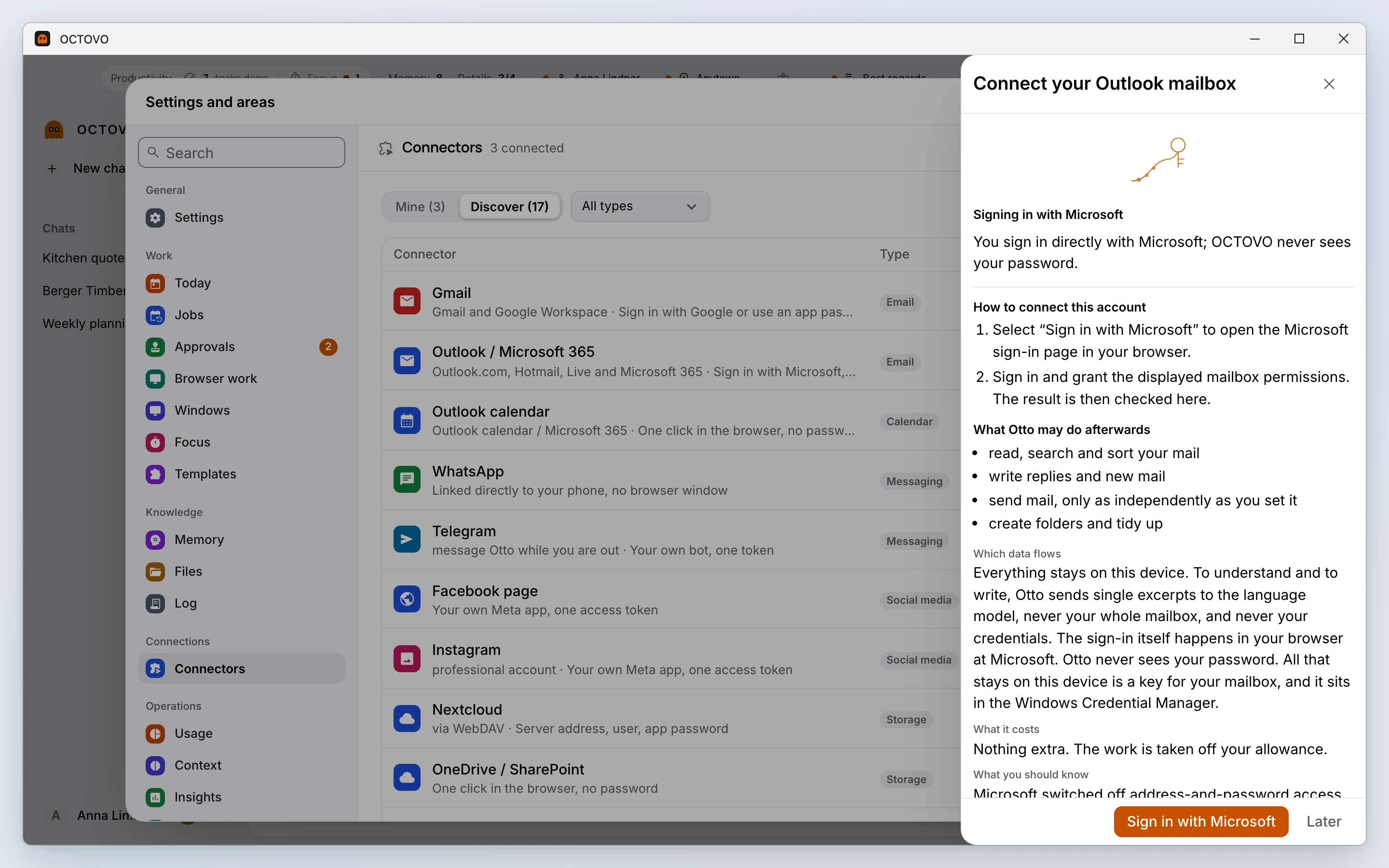
You sign in to Microsoft in the browser, no password ends up in the app. If the application ID of your own app registration is still missing, a one-time setup at Microsoft is needed first (about five minutes): you register an application at entra.microsoft.com and enter its application ID. Since 2024, Microsoft no longer allows Outlook mailboxes to connect with a password or app password.
What you see:
- Sign in with Microsoft, no password opens the Microsoft sign-in.
- Application (client) ID only for the one-time setup.
- Tenant (optional) only if your organisation specifies one.
Enabling sending
 Windows
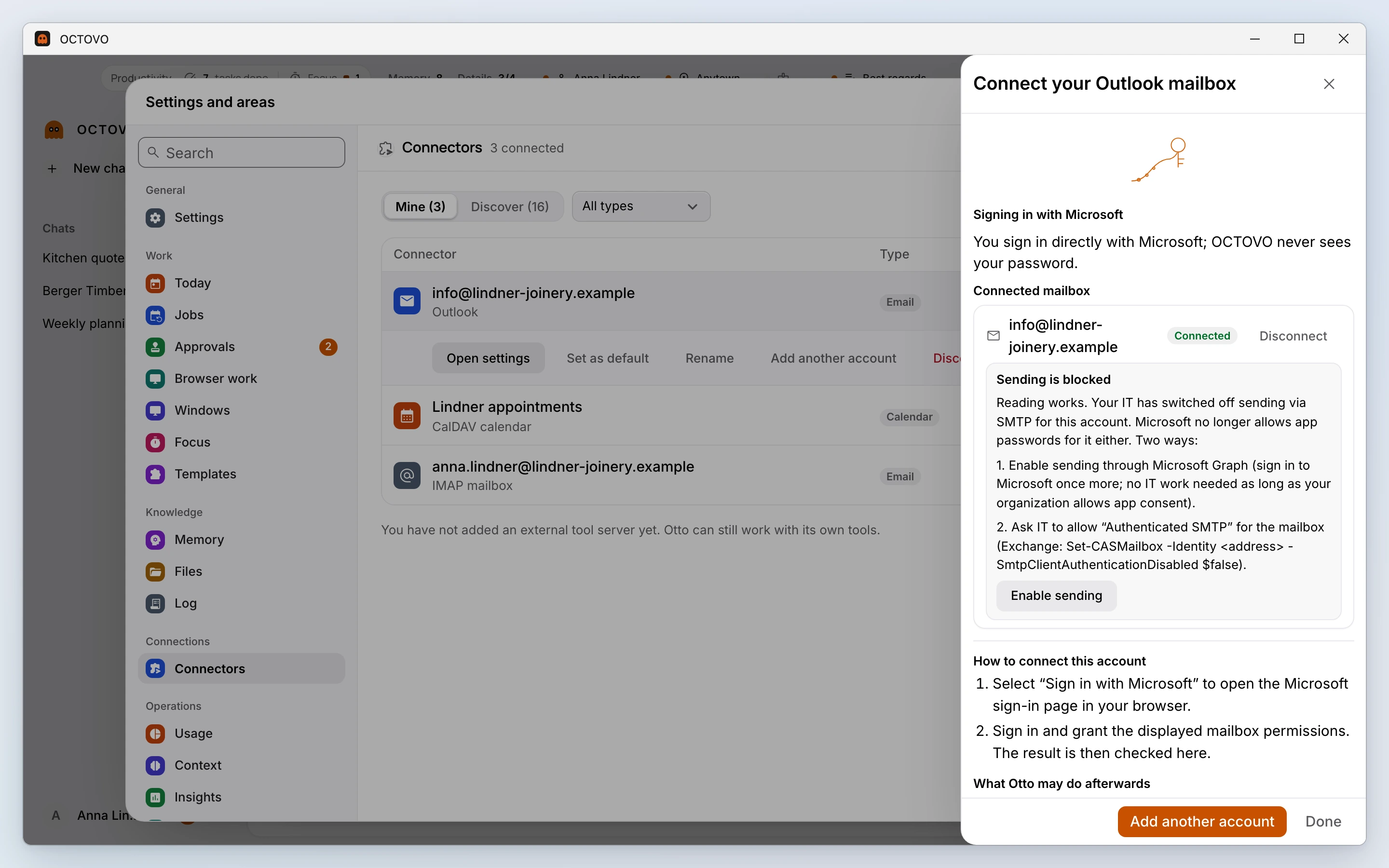
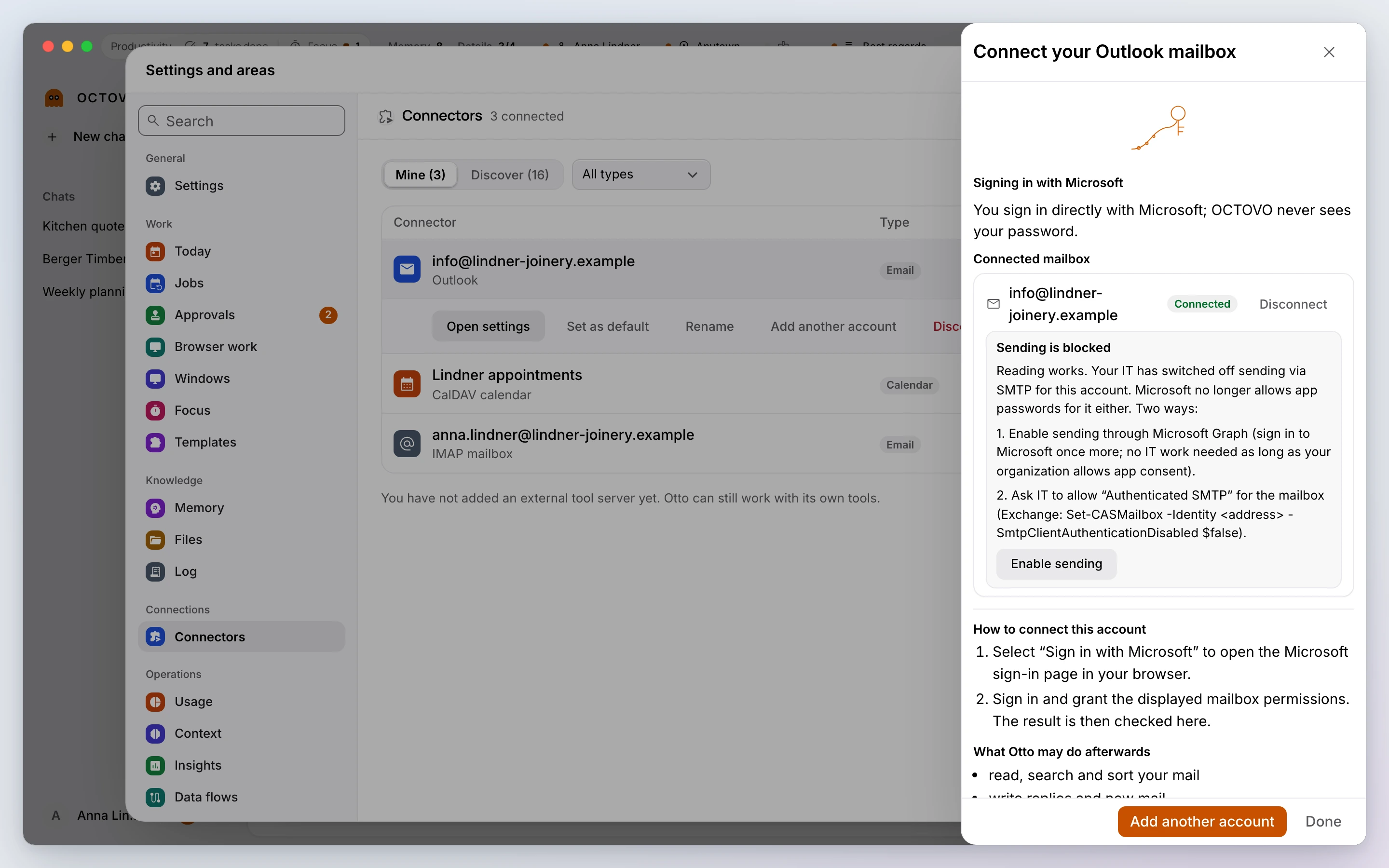
After connecting, your assistant may only read. Only when you choose “Enable sending” may it send emails, and even then, depending on the level, only after your approval.
What you see:
- Sending is blocked note on the connected mailbox.
- Enable sending allows sending.
← Back: Connectors at a glance · Next: Connecting a calendar →