Memory and knowledge
Files and earlier versions
See which files your assistant worked on and restore old versions.
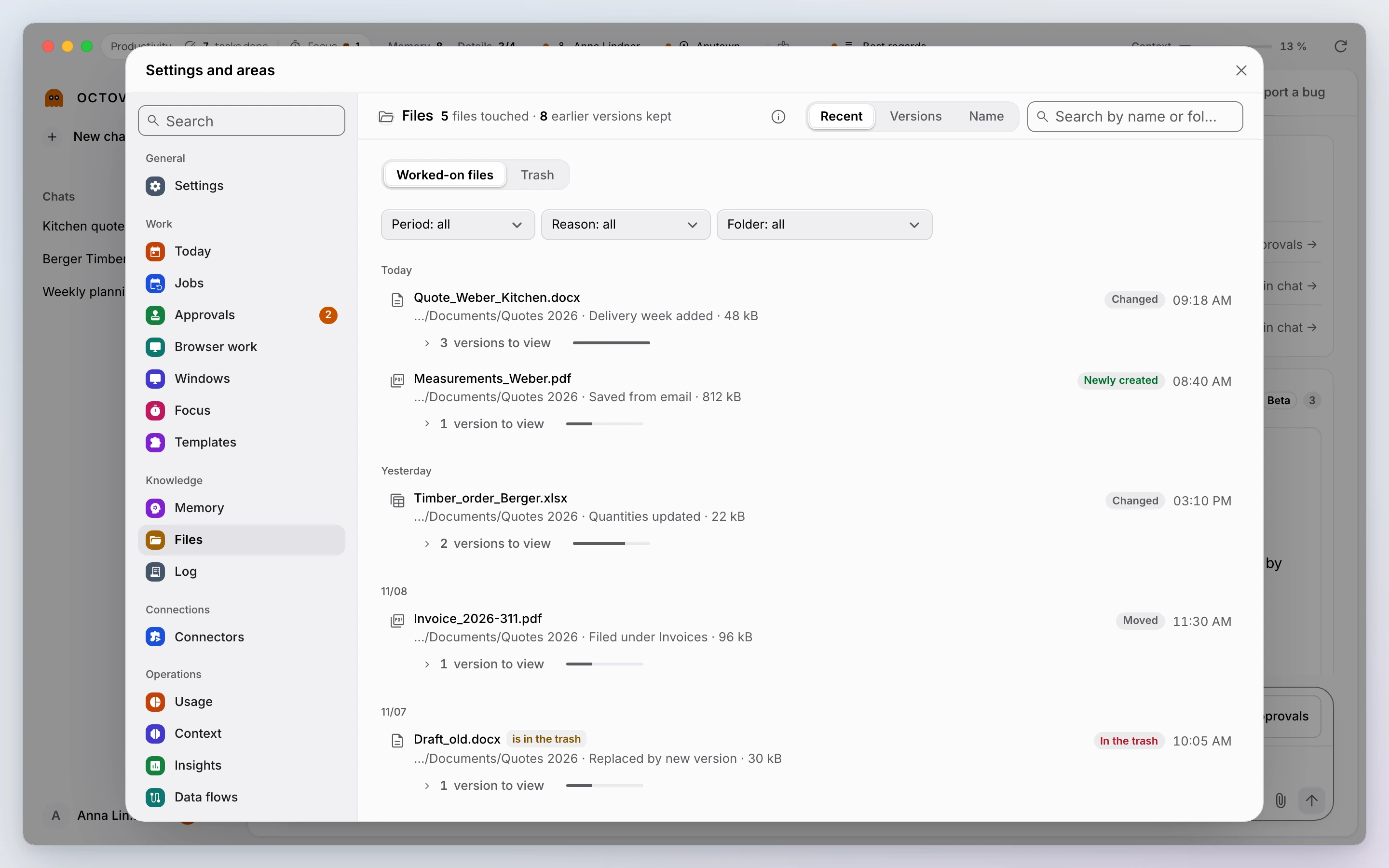
Before your assistant changes, moves or bins a file, OCTOVO keeps the previous version. In the “Files” window (sidebar, “Knowledge”) you see everything it touched and can restore any version.
Worked-on files
 Windows
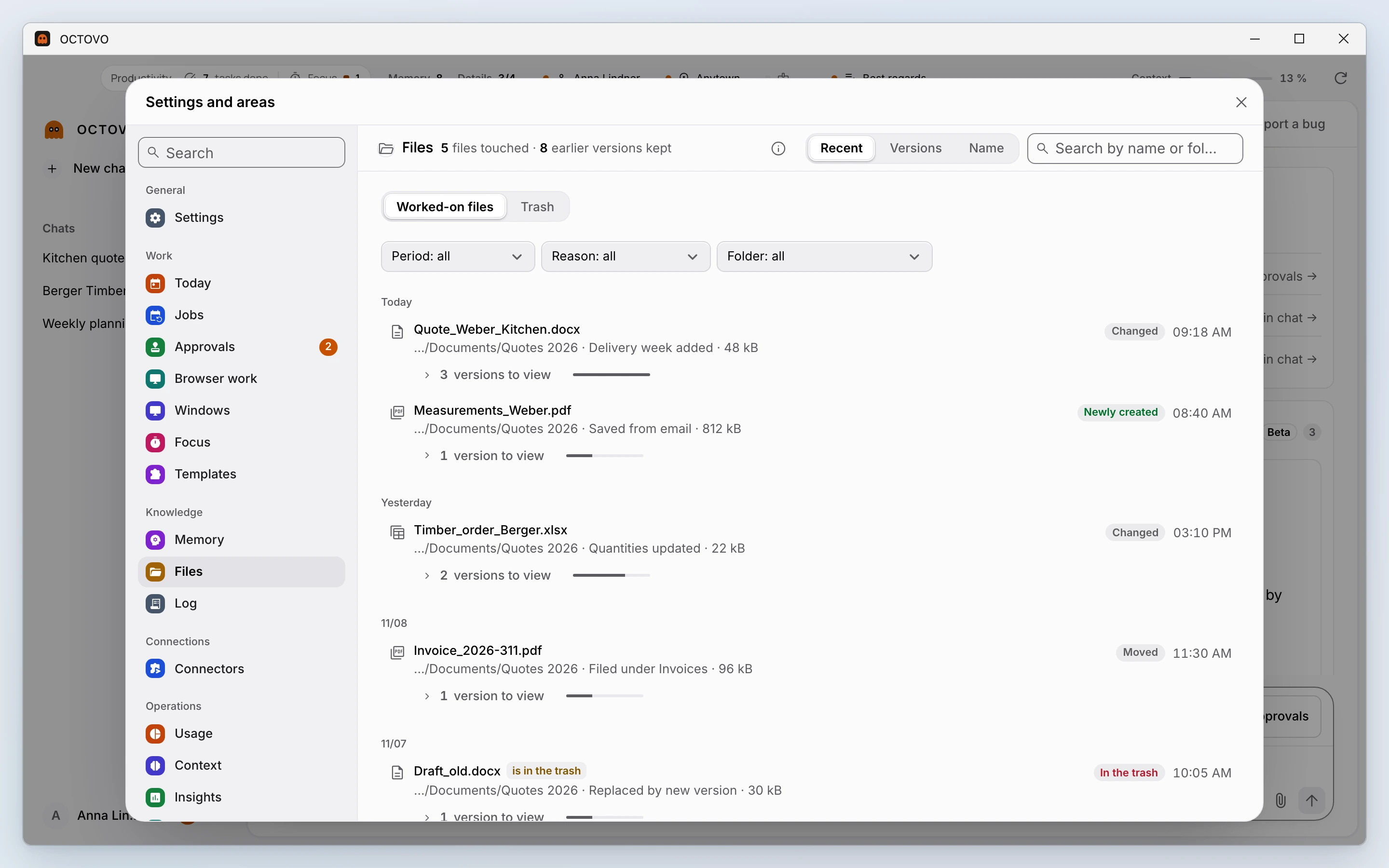
The “Worked-on files” view lists every file with the kind of its last change. Search and filters narrow the list.
What you see:
- Search by name or folder the search field.
- Period “Today”, “Yesterday”, “This week”, “This month” or “Custom period”.
- Folder / Reason narrow the list by location or by the reason for the change.
- Clear filters removes all filters.
- Sorting “Last touched”, “By name” or “Most versions”.
- Kind of change “Newly created”, “Changed”, “Moved”, “In the bin”, “Restored” or “Handed over”.
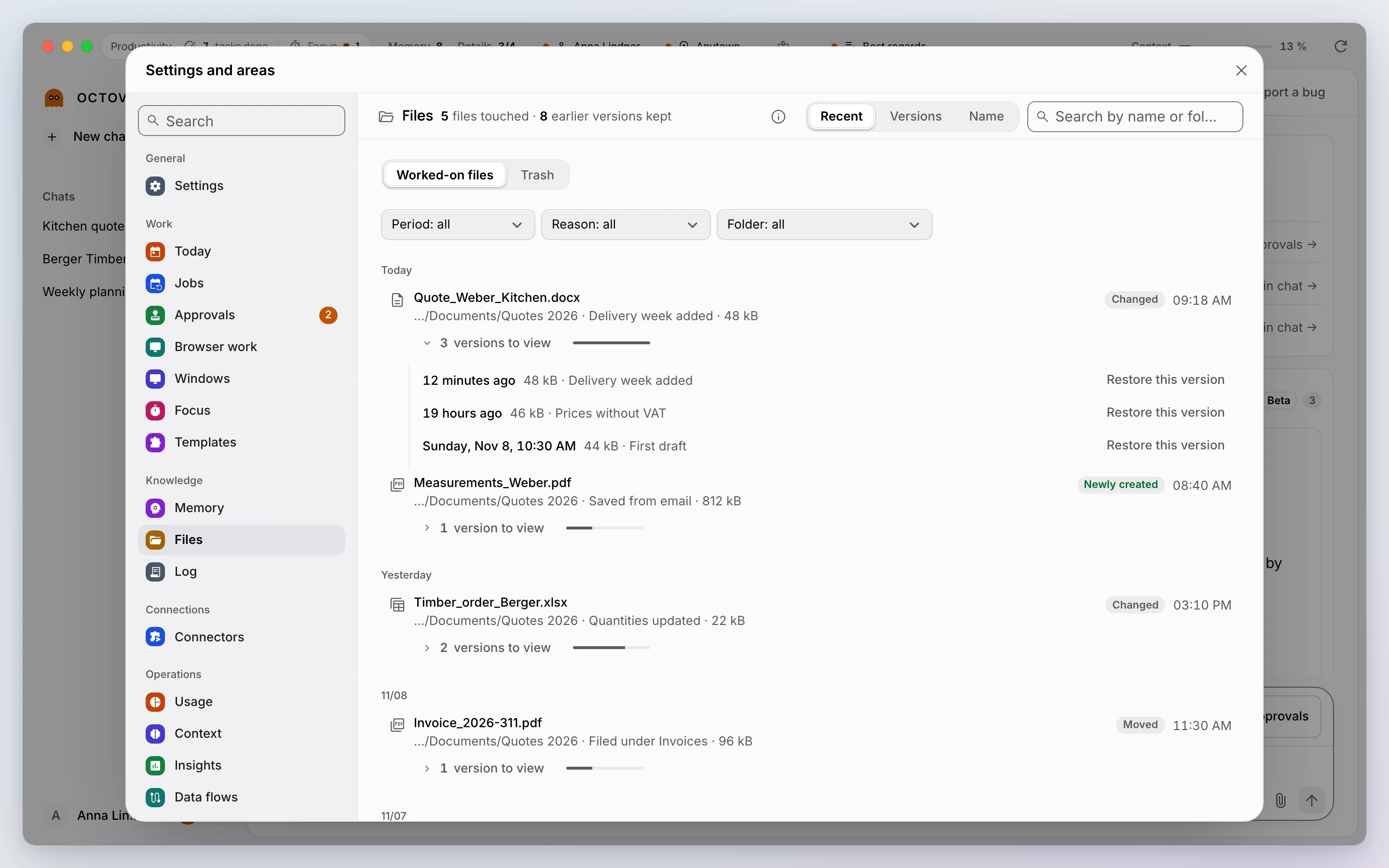
Restoring an earlier version
 Windows
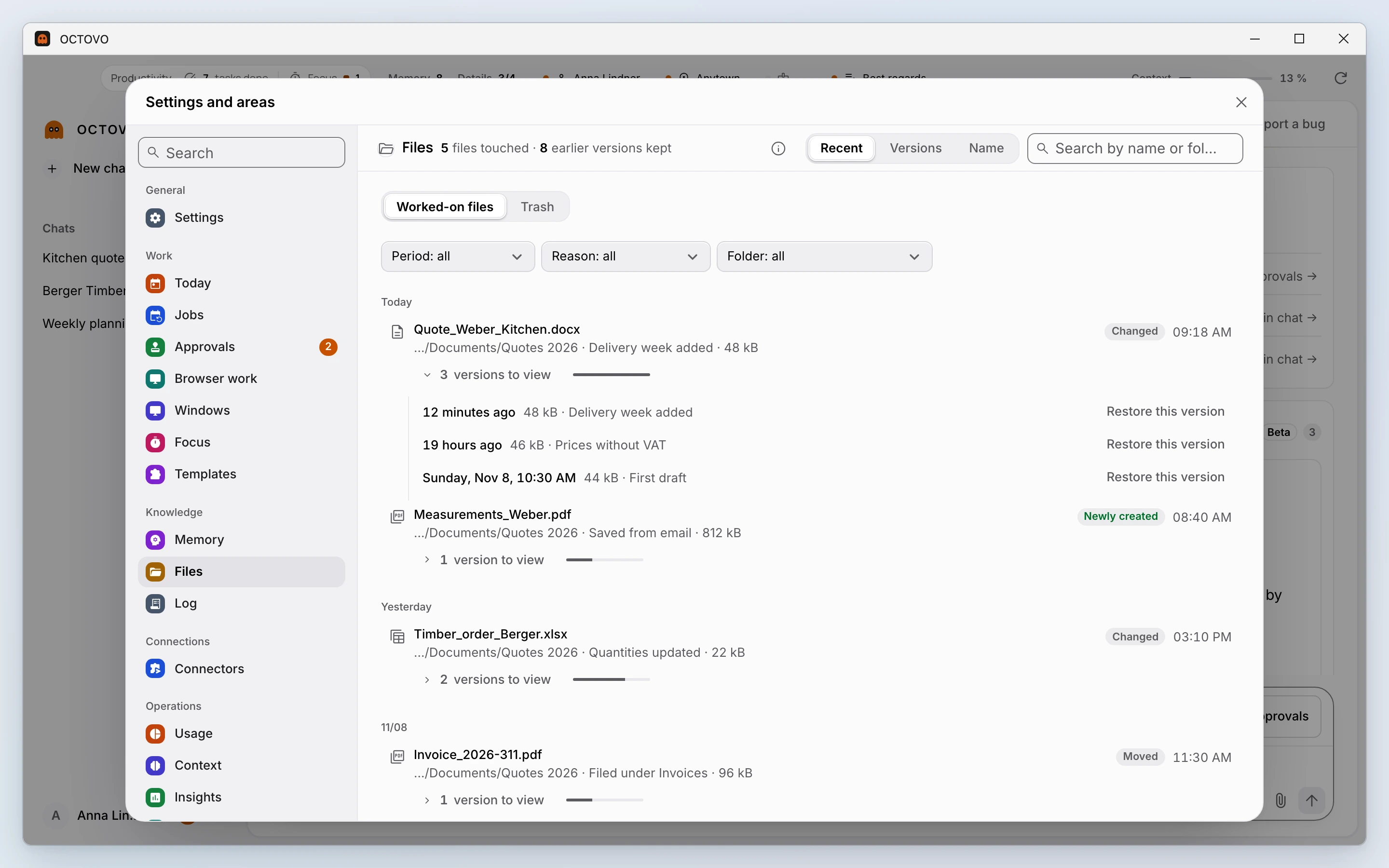
Select a file to see its versions. You can read a version in full and restore it.
What you see:
- Read all shows the full content of a version.
- Restore this version puts the file back to this version.
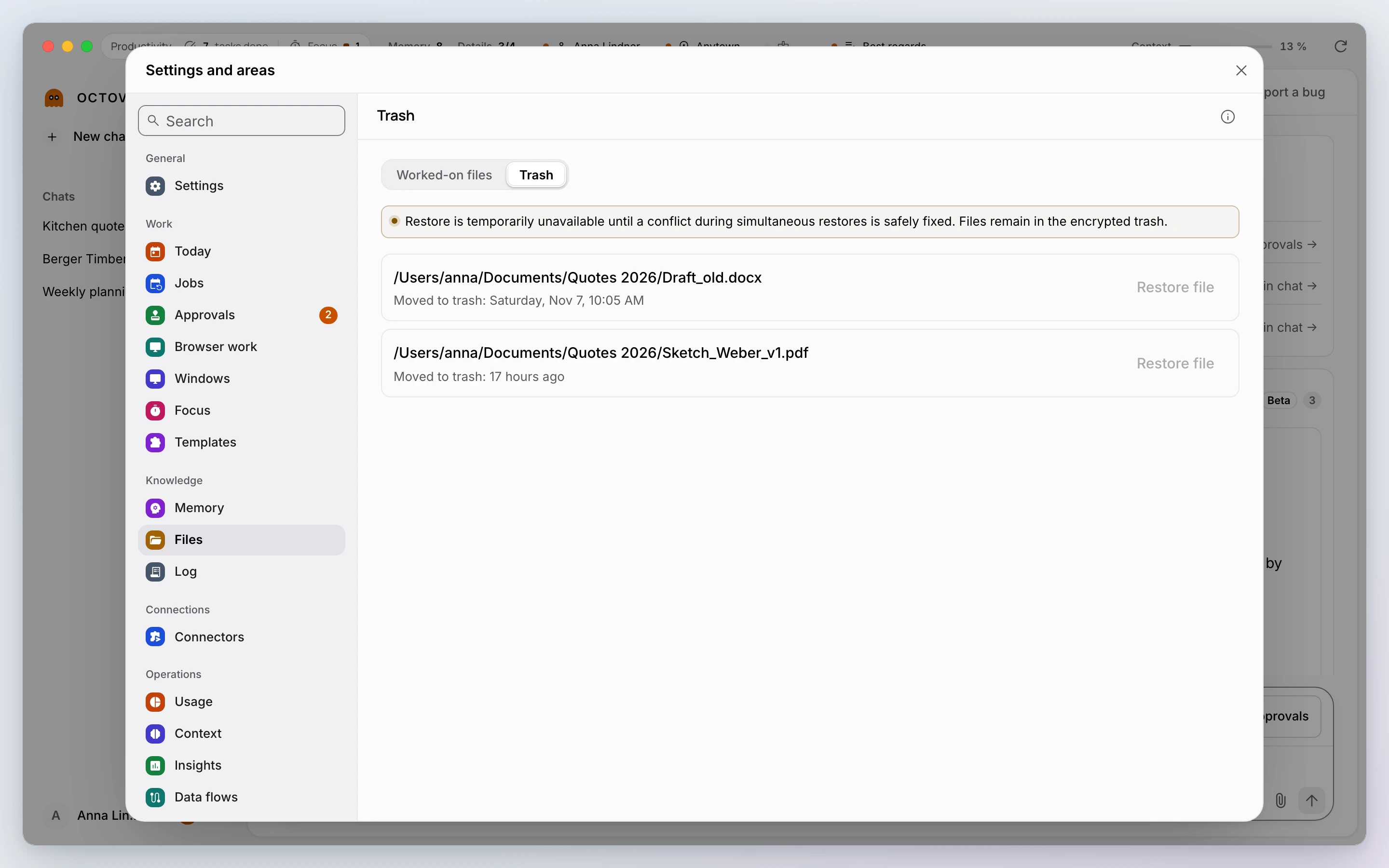
Trash
 Windows
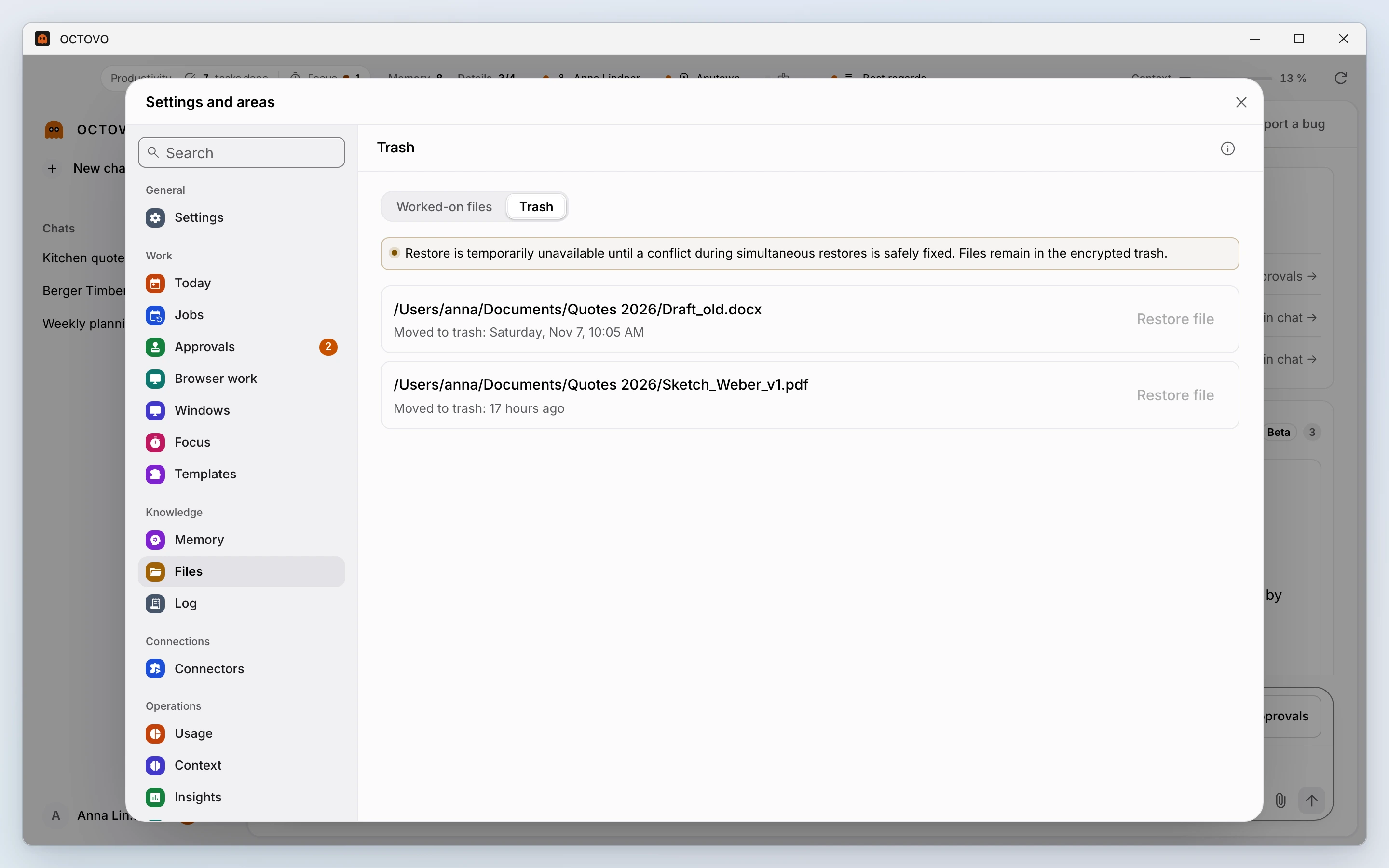
Whatever your assistant put in the bin is in the “Trash” view.
What you see:
- Trash the view with removed files.
- Restore file puts the file back in its place.
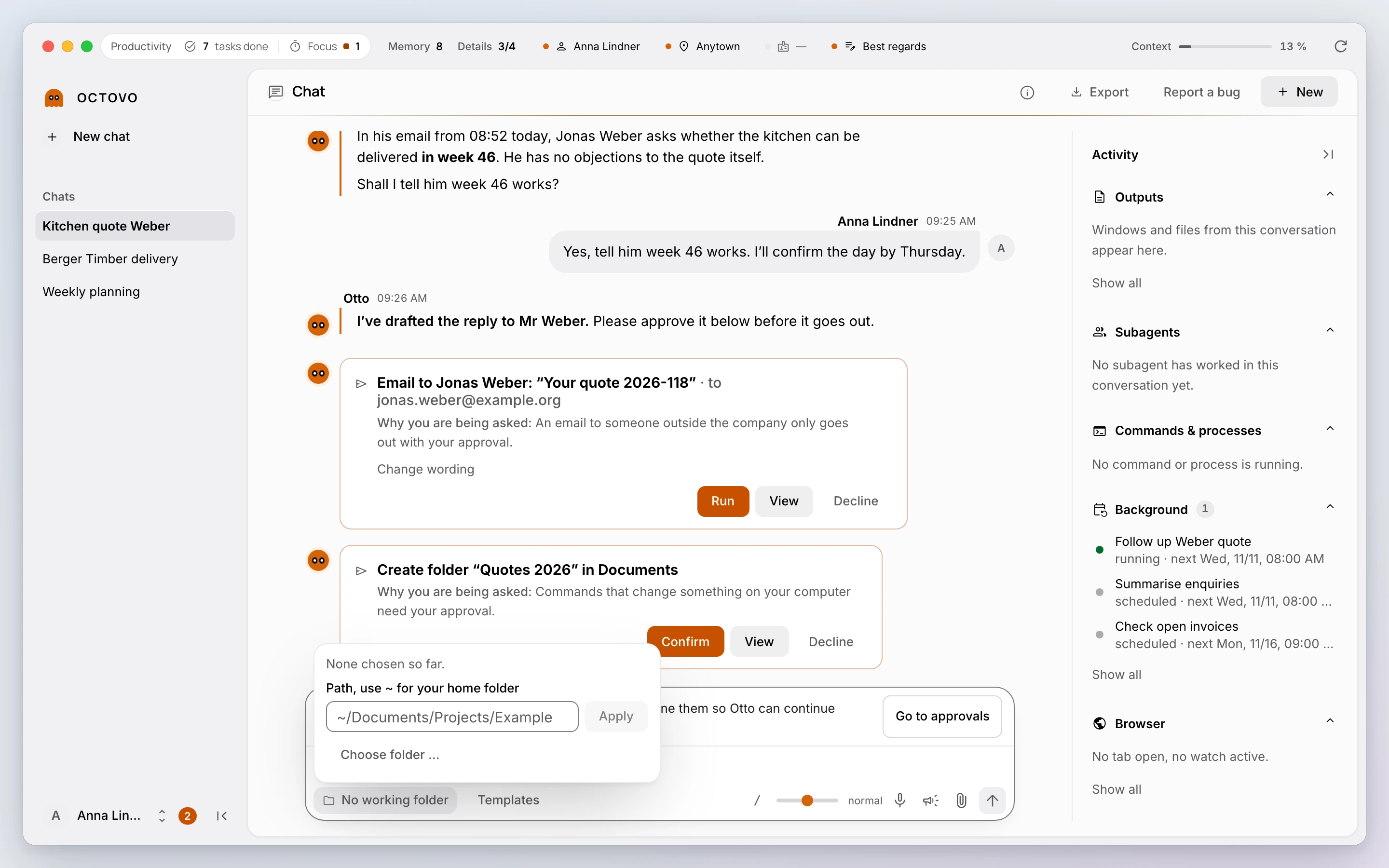
Choosing a working folder
 Windows
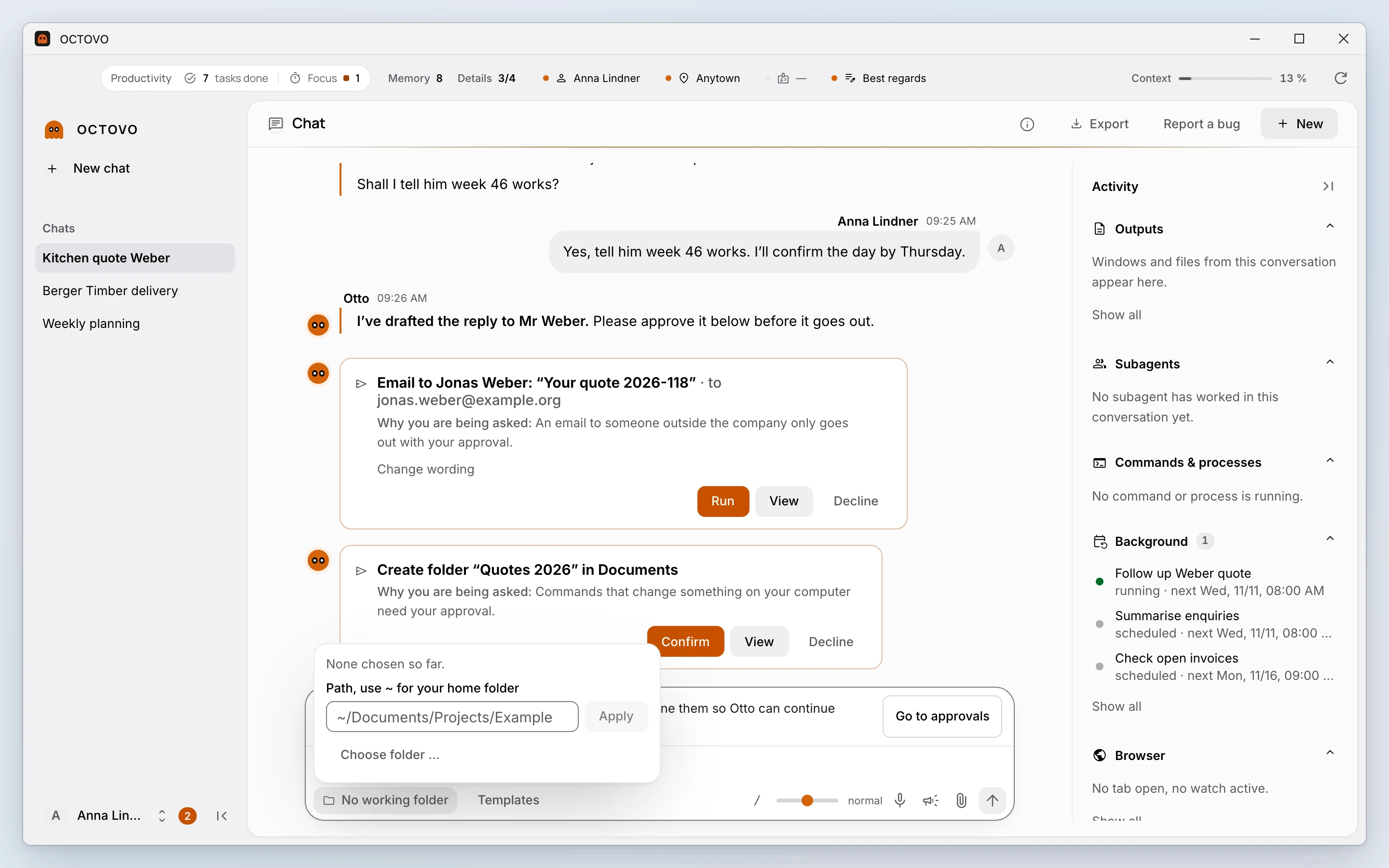
For a job you can set which folder your assistant works in.
What you see:
- Choose working folder opens the selection.
- Choose folder … picks a folder on the computer.
- Recently used offers the folders used most recently.
- Use none works without a fixed folder.