Getting started
The interface
Sidebar, windows and account menu at a glance.
On this page
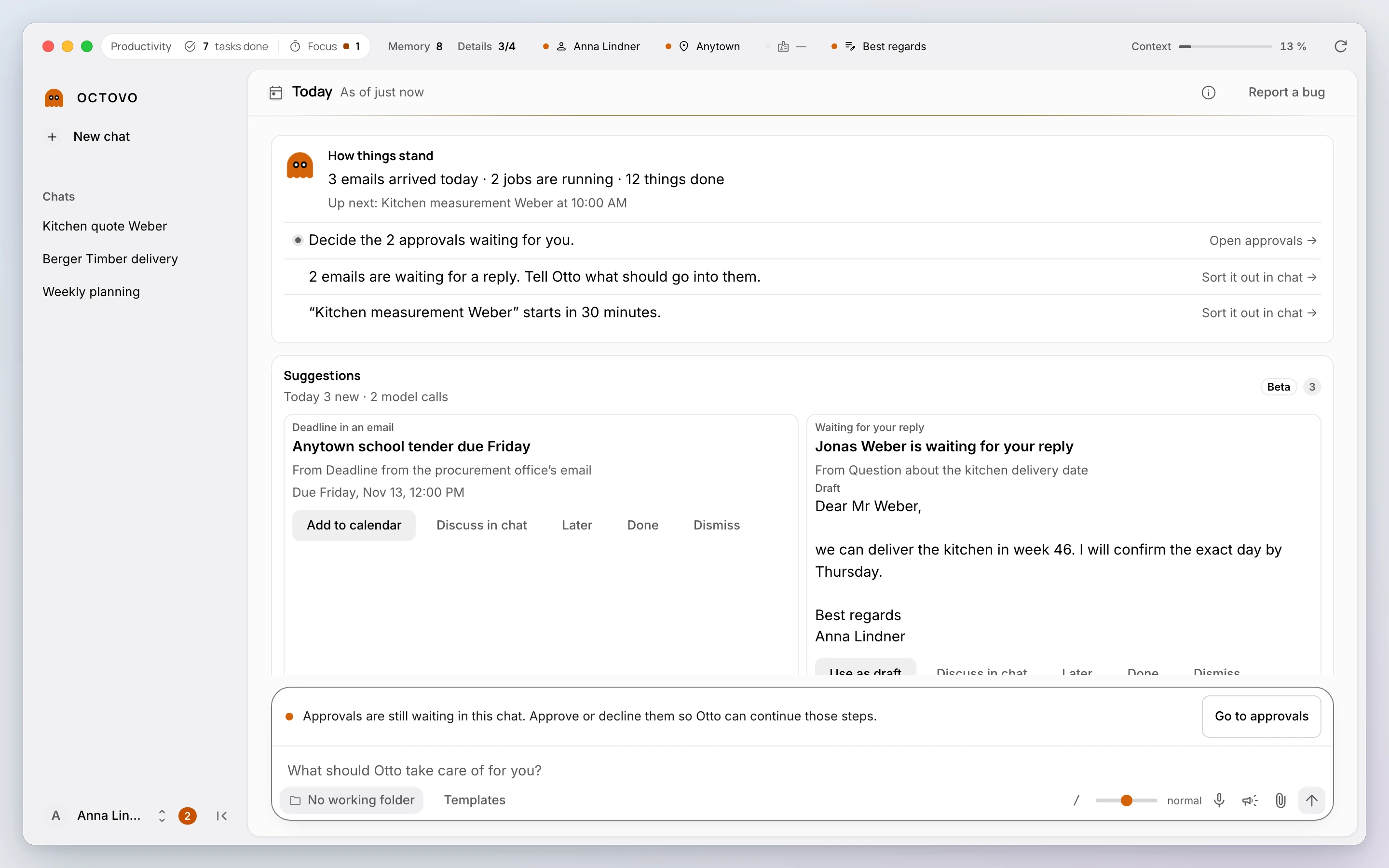
You reach everything important through the sidebar on the left. You can collapse it when you need more room.
The sidebar
 Windows
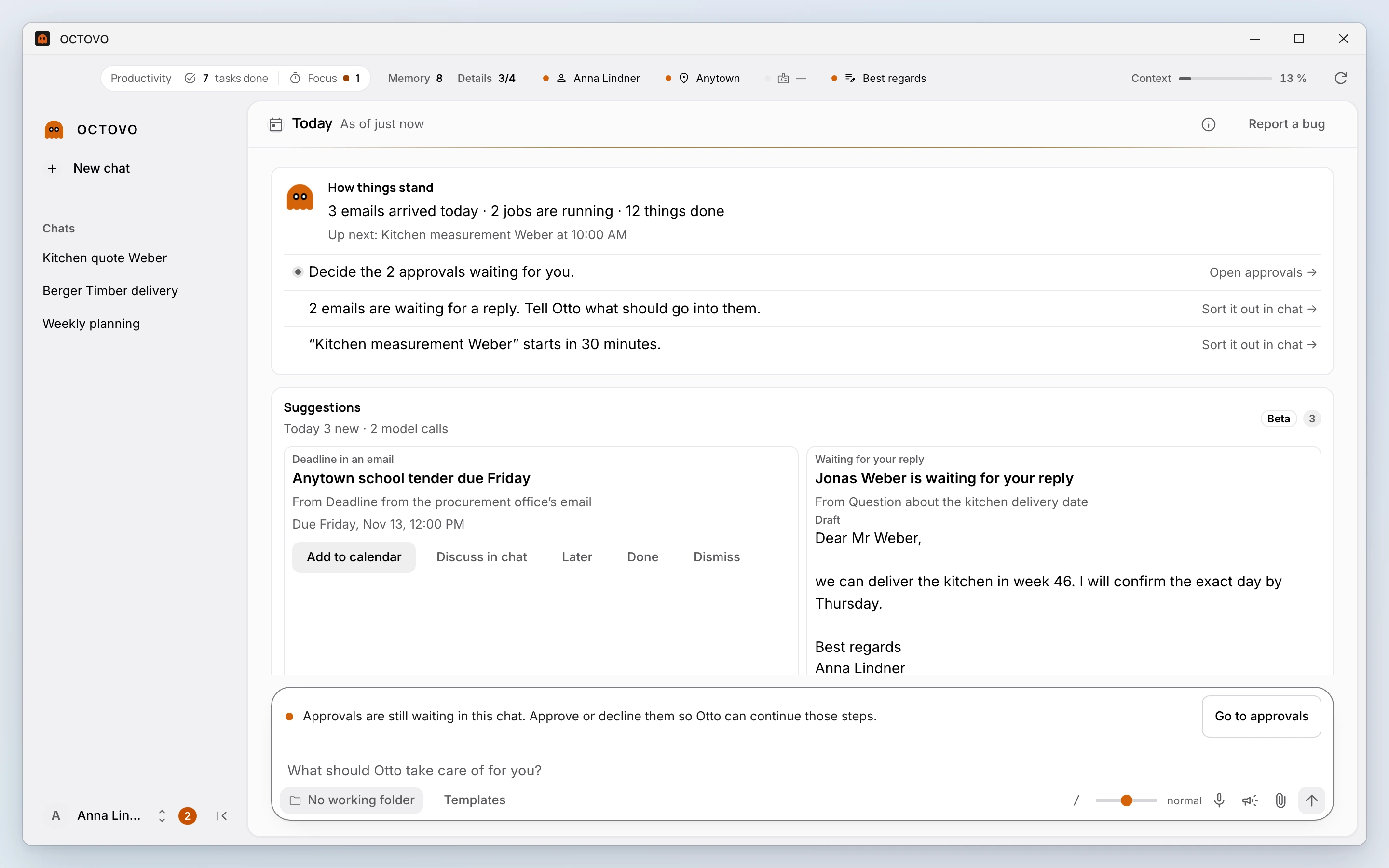
At the top are “New chat” and your recent chats, below them the windows.
What you see:
- General Chat, Today, Jobs, Approvals, Browser work, Windows, Focus, Templates.
- Knowledge Memory, Connectors, Files, Log.
- Operations Allowance, Context, Insights, Data flows.
- Settings all settings of the app.
- Number on an entry shows how many things are waiting for you.
macOS
Collapsing the sidebar
 Windows
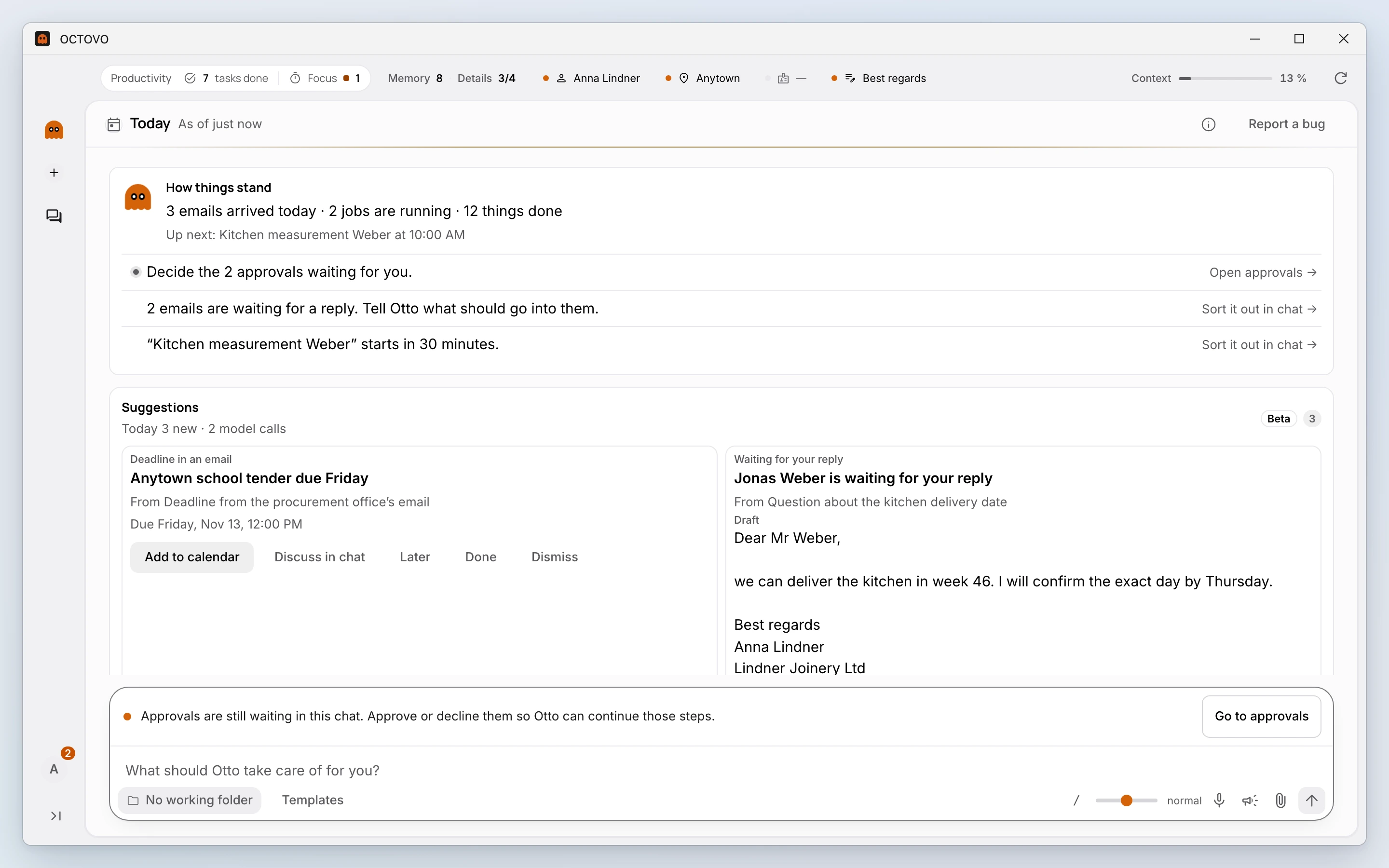
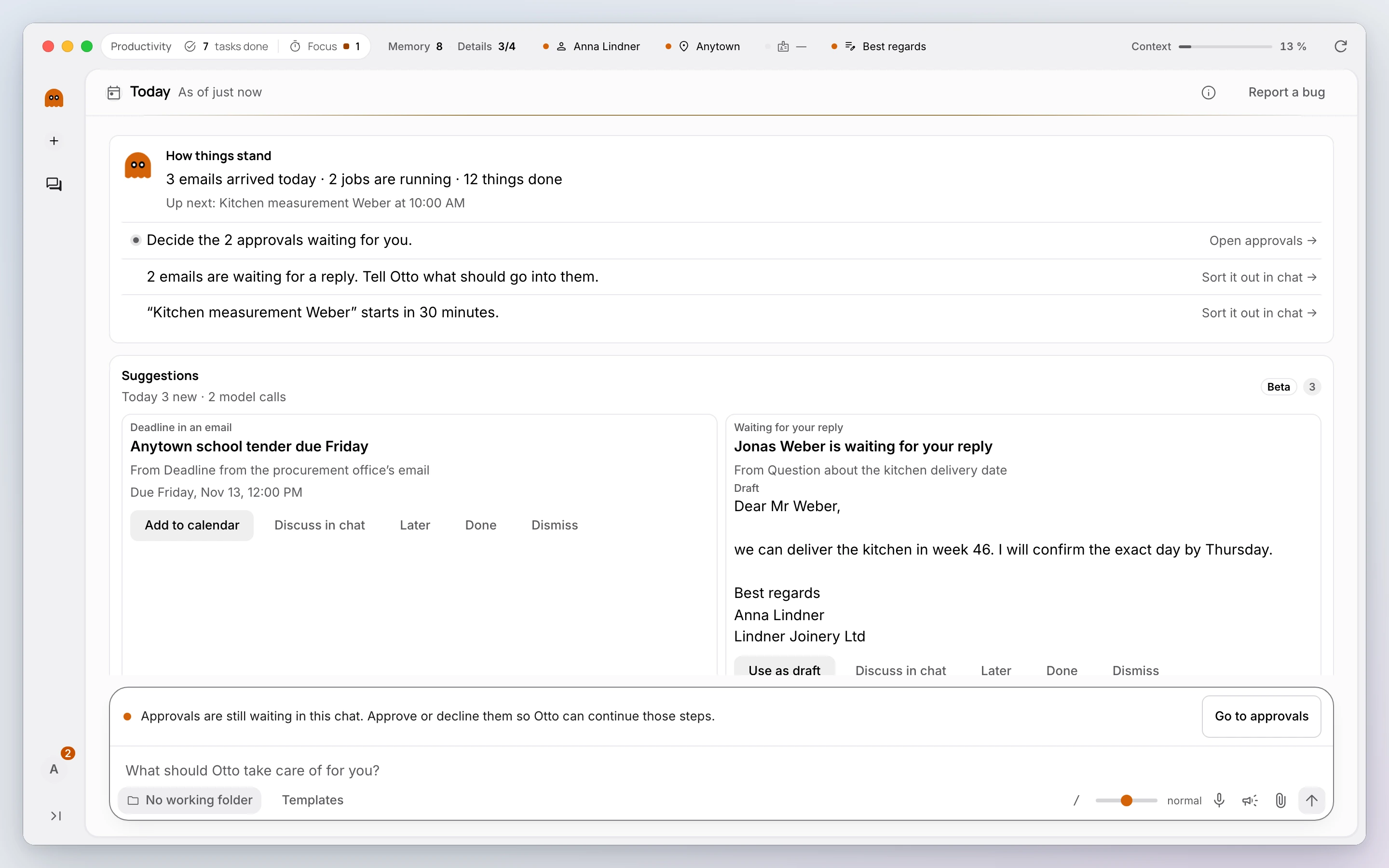
You can shrink the bar down to icons.
What you see:
- Collapse sidebar (⌘ .) collapses the sidebar. “Expand sidebar (⌘ .)” widens it again.
Windows
Collapsing the sidebar
You can shrink the bar down to icons.
What you see:
- Collapse sidebar (Ctrl + .) collapses the sidebar. “Expand sidebar (Ctrl + .)” widens it again.
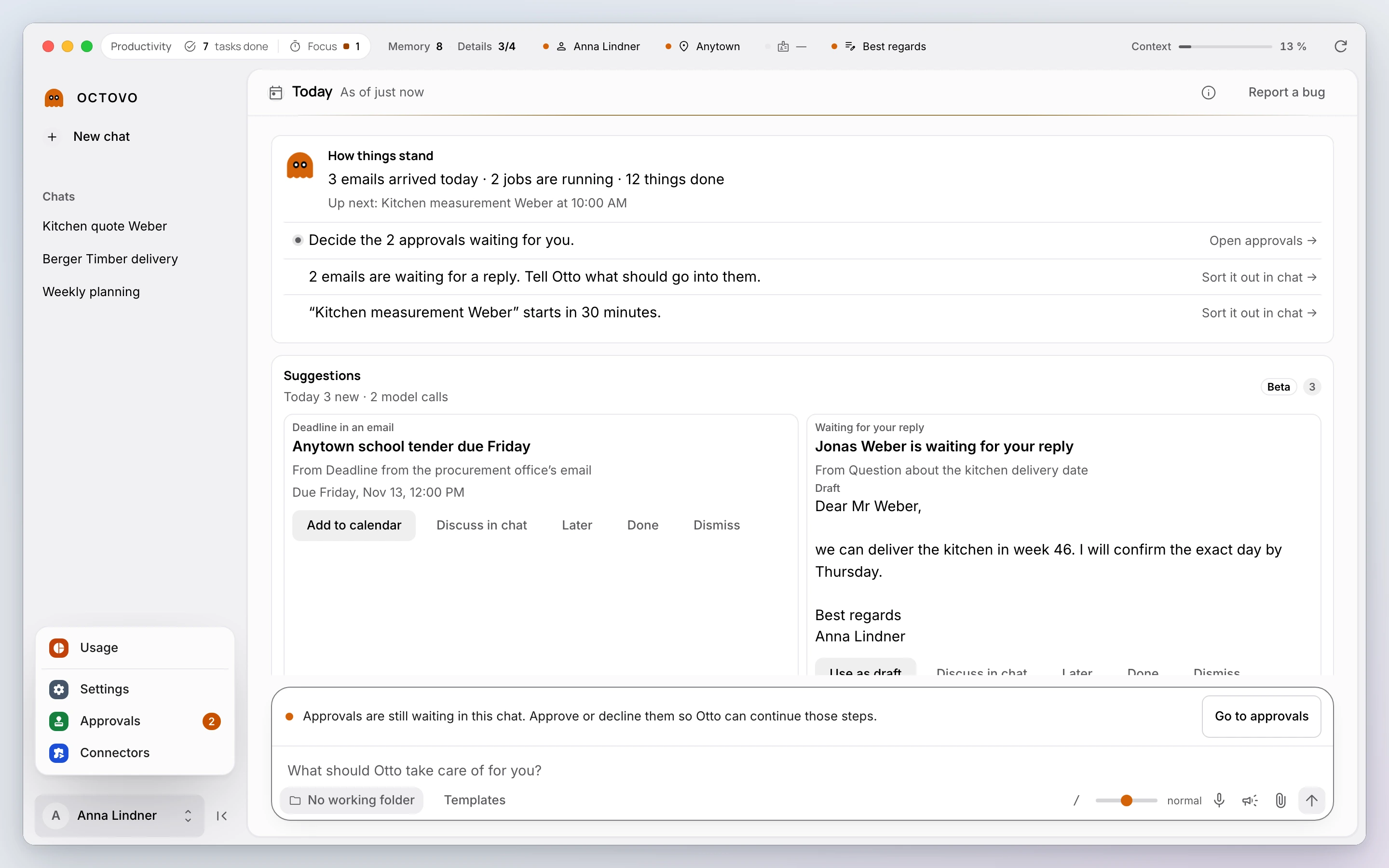
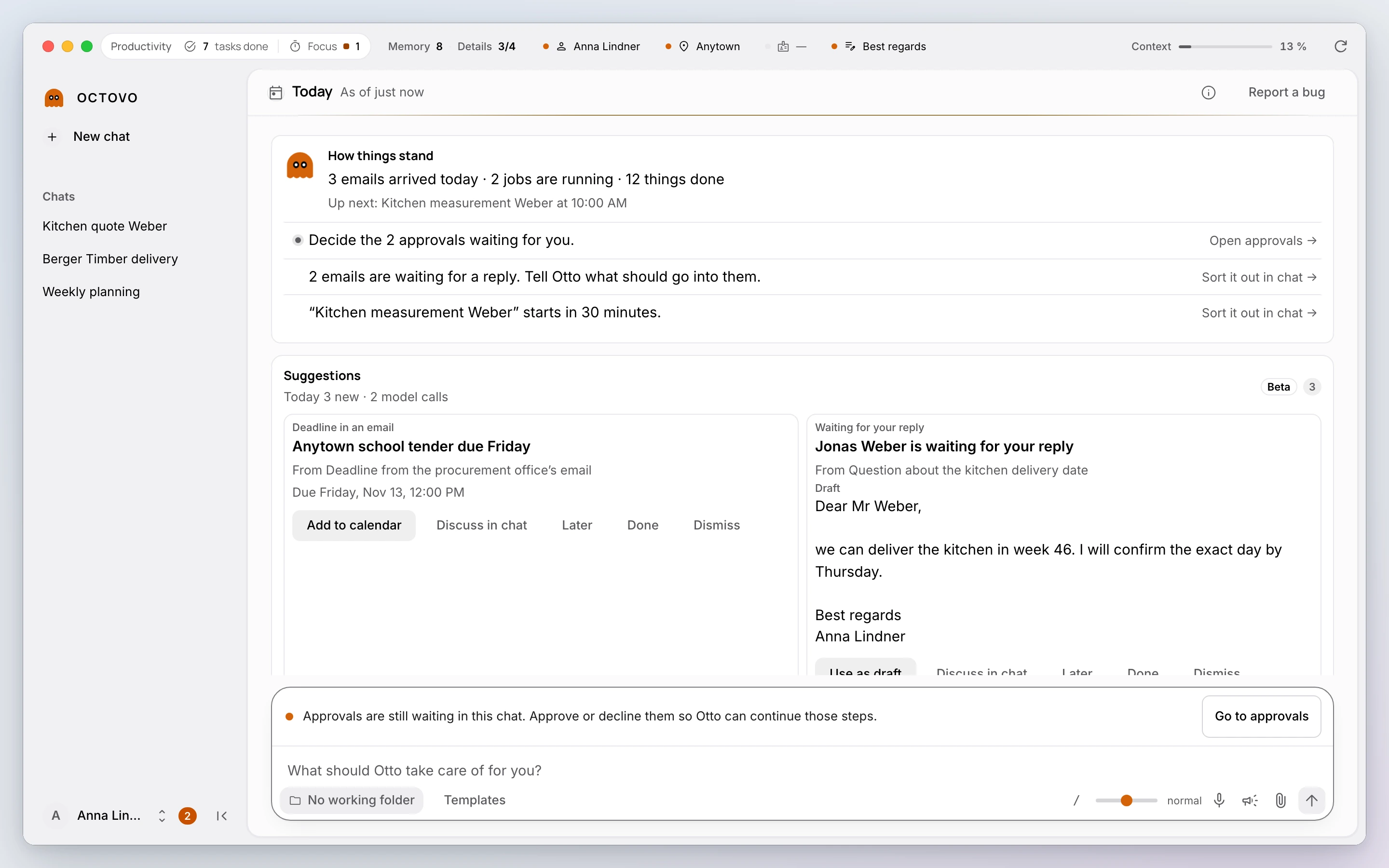
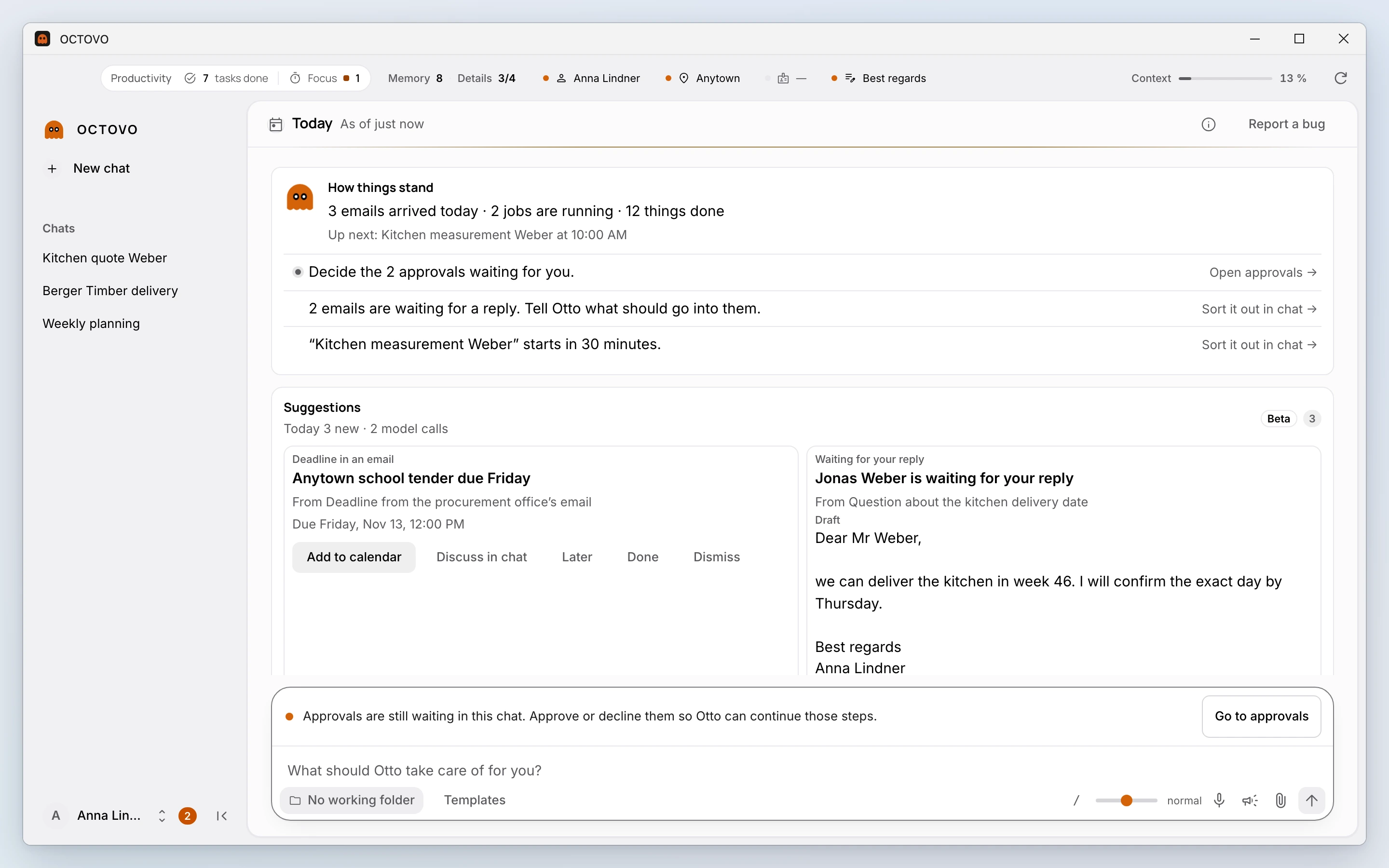
The account menu
 Windows
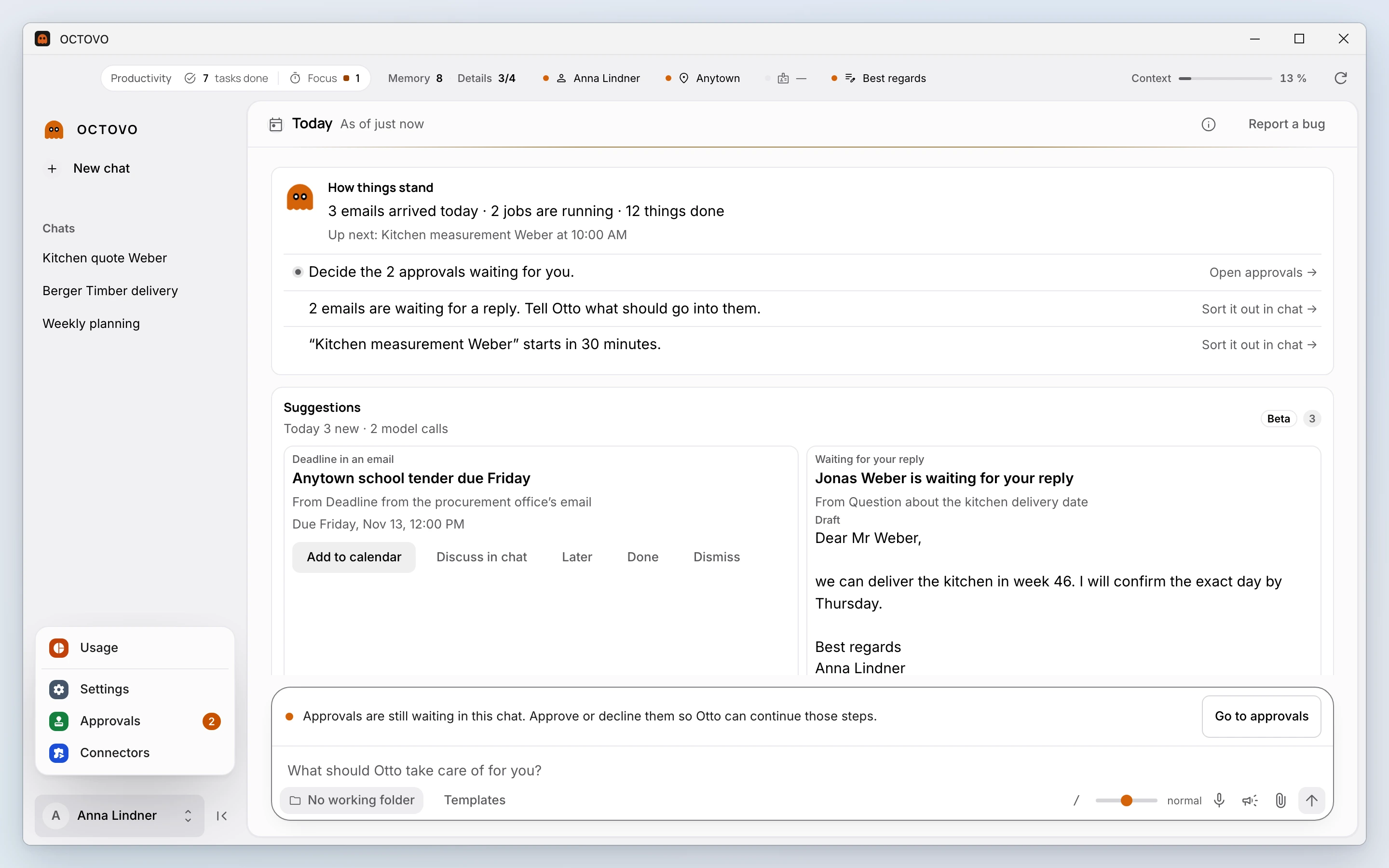
Open the account menu at the bottom of the sidebar.
What you see:
- Usage leads to the allowance.
- Settings all settings of the app.
- Approvals what is waiting for your go-ahead.
- Connectors your connected services.
Quick access
 Windows
Even with the window closed, you can reach your assistant through its icon. There you see how things stand, can give it something to do or stop everything with “Stop everything”.
What you see:
- Status for example “All quiet” or “Waiting for you”.
- Coming up what is still due today.
- Stop everything the emergency stop.
- Show the app window brings the main window to the front.
macOS
Where the icon sits
On the Mac, the icon sits at the top right of the menu bar.
Windows
Where the icon sits
On Windows, the icon sits in the notification area of the taskbar at the bottom right.