Working with your assistant
Templates and shortcuts
Use ready-made templates and create your own commands.
On this page
Templates are ready-made texts for frequent tasks that you take from a collection into your library. Shortcuts are your own slash commands, such as /write-quote.
The “Templates” window
 Windows
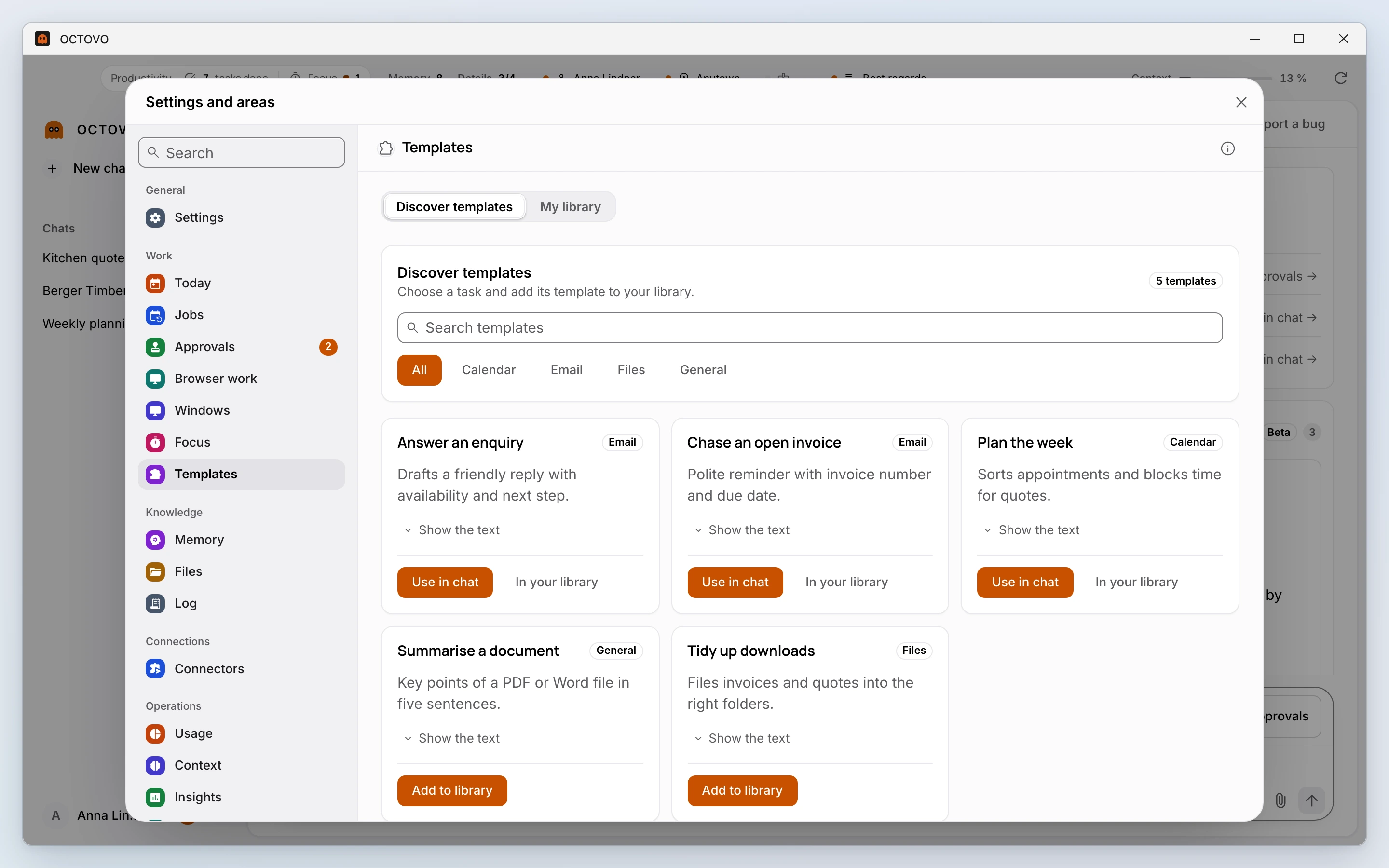
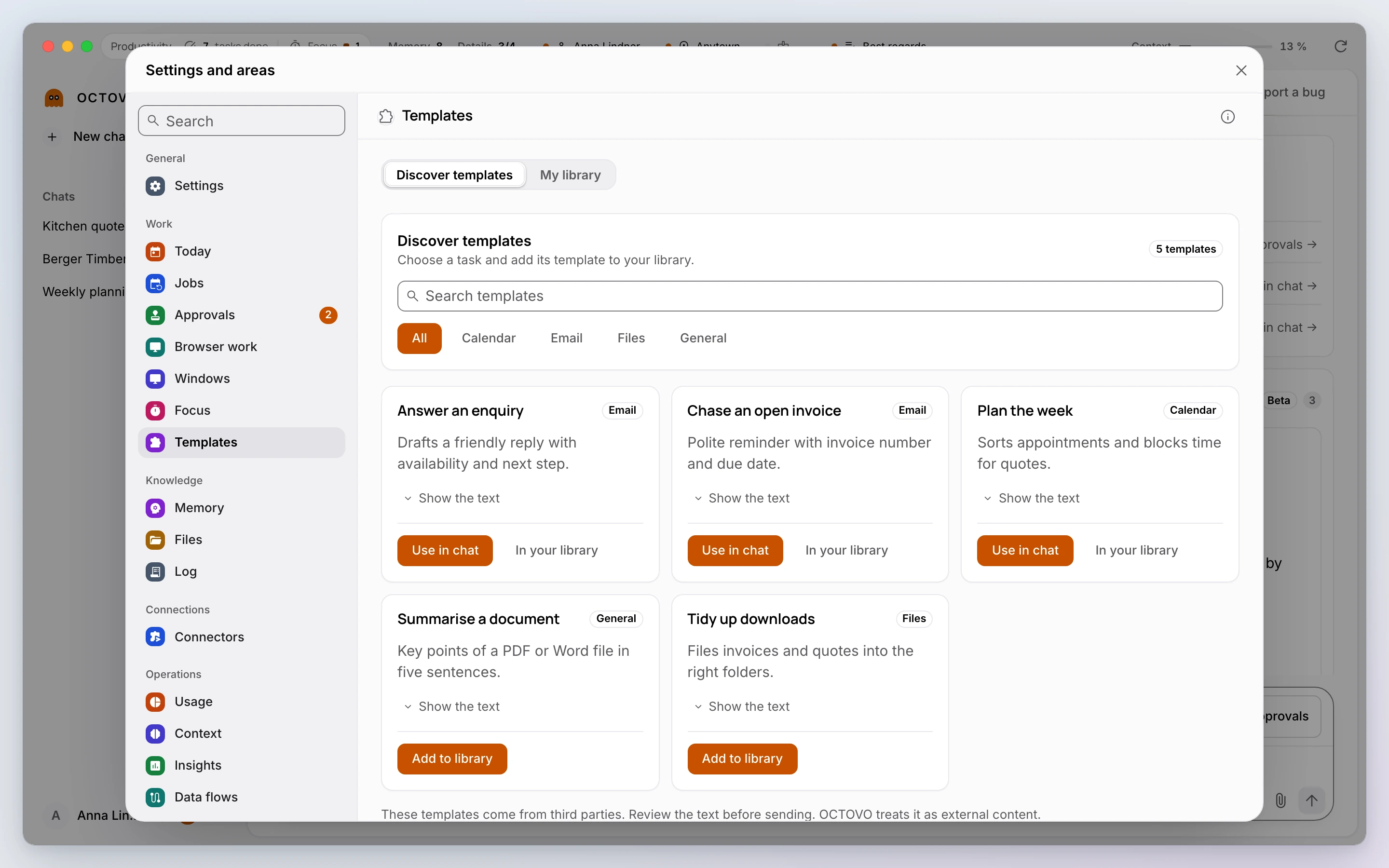
Under “Discover templates” you search the collection; “My library” holds the templates you have taken. The templates come from third parties. Check the text before sending.
What you see:
- Discover templates / My library the two views.
- Search templates / Filter by category narrows the collection.
- Show the text shows the full text.
- Add to library takes the template. Afterwards it says “In your library”.
- Use in chat puts the text into your input field.
- Remove from library after you confirm with “Yes, remove it”.
Your own shortcuts
 Windows
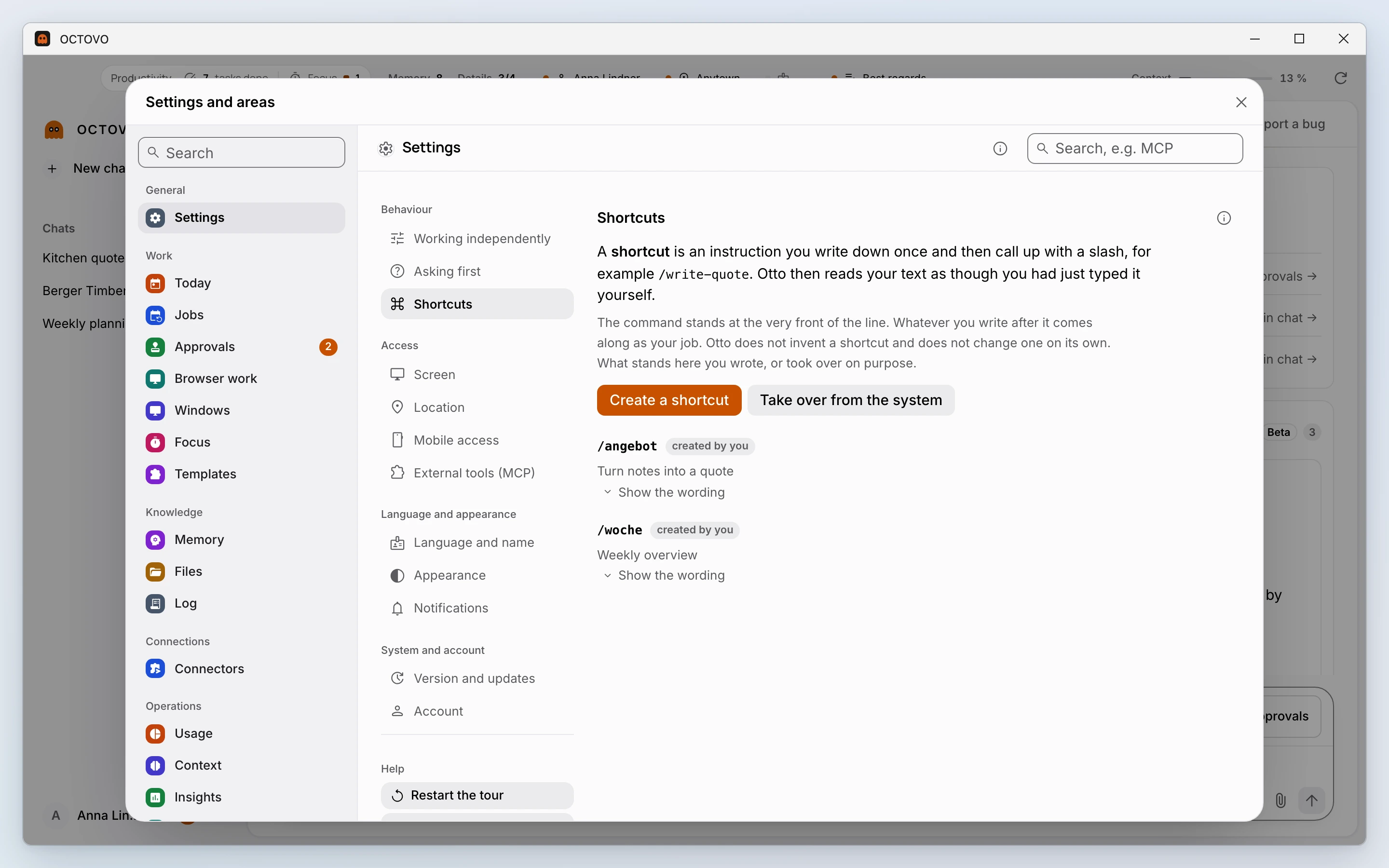
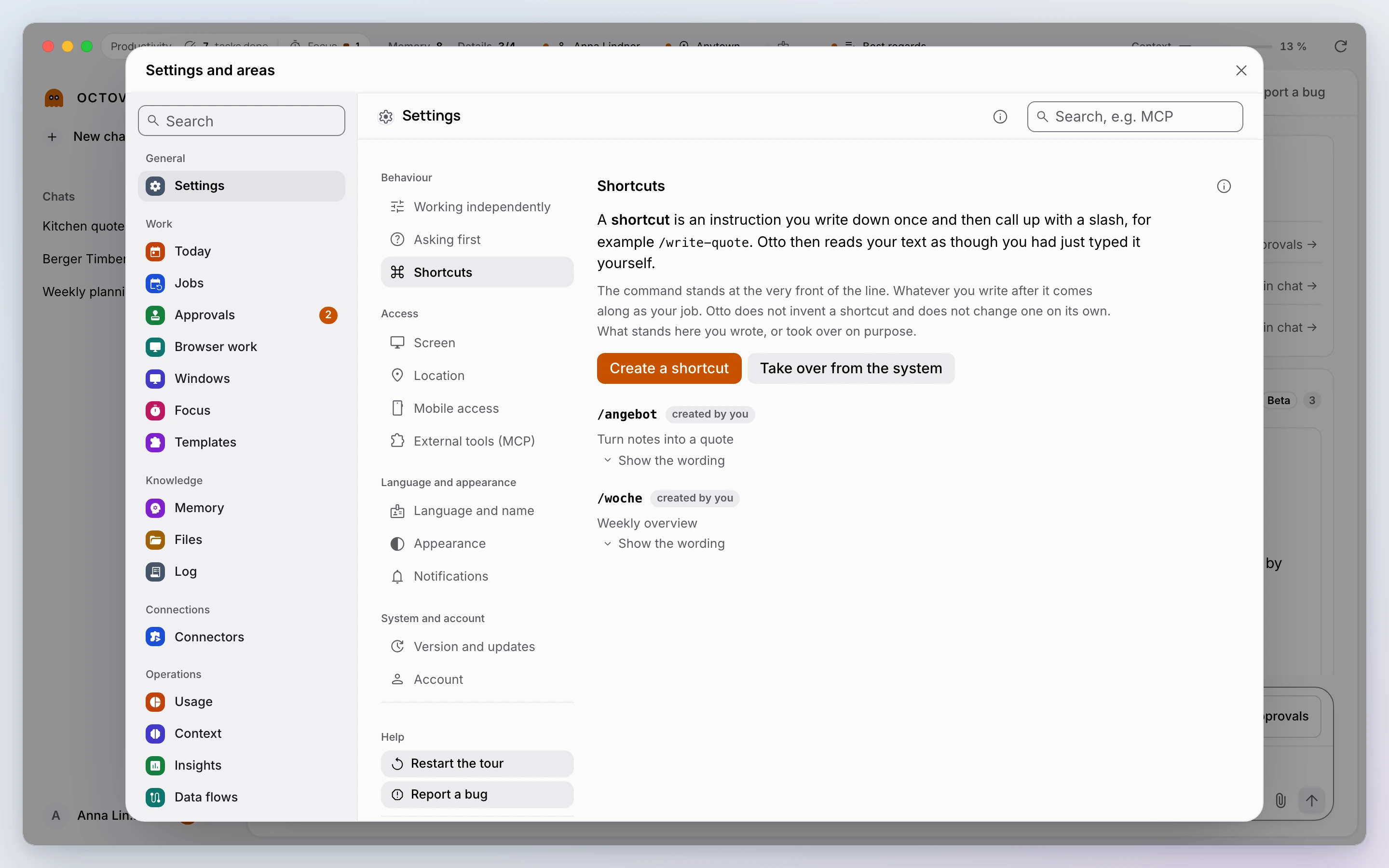
Under “Settings” › “Shortcuts” you create your own commands. A shortcut puts your instruction in front of your text and then takes the ordinary route, so it does use allowance.
What you see:
- Create a shortcut opens “New shortcut”.
- Name. This is how you call it for example “write-quote”, called with /write-quote.
- What is it for? One sentence for the list the short description.
- The instruction, what needs doing the text your assistant receives.
- Save / Cancel saves or discards.
- Edit / Delete adjusts, or removes after “Yes, delete it”.
- Take over from the system takes over shortcuts from your system.