Working with your assistant
Managing chats
Find, rename, delete and export chats.
On this page
It is best to give each topic its own chat. That keeps the history clear and your assistant knows what it is about.
The chat list
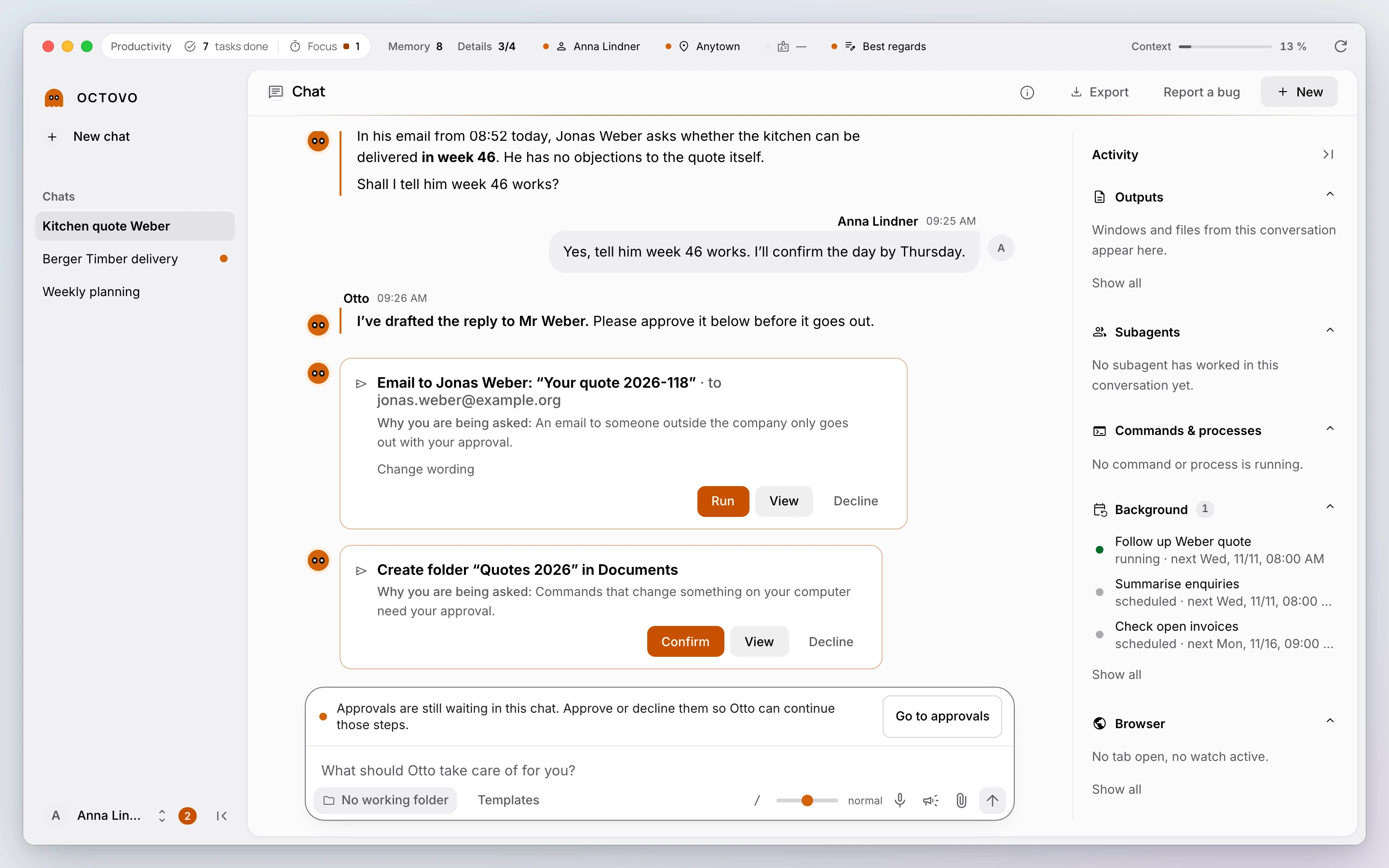 Windows
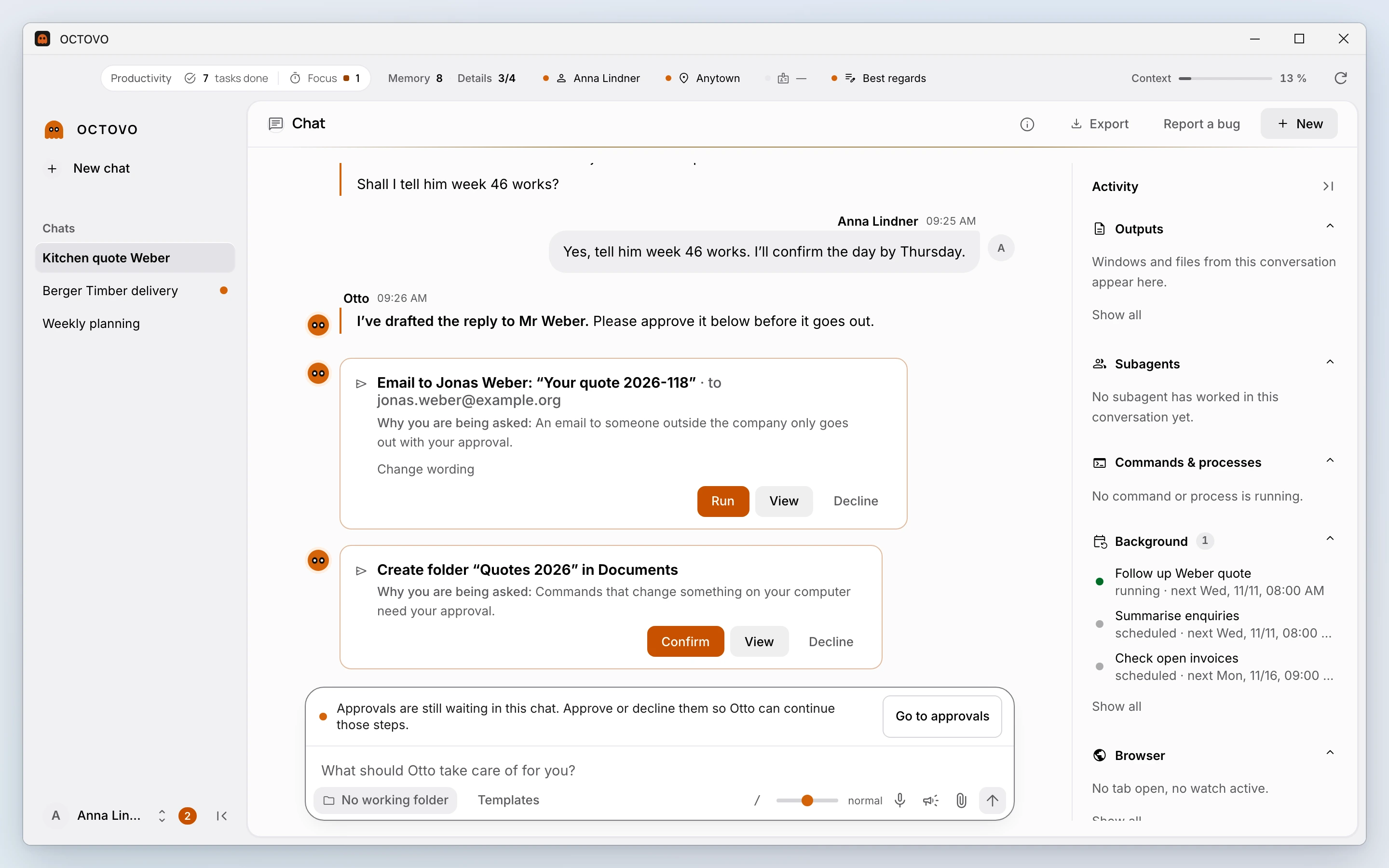
“Open chats” shows all your chats. A dot on an entry shows you where something is happening.
What you see:
- Open chats shows the list of your chats.
- “is working” dot work is going on in this chat.
- Done, not viewed yet something new has finished here.
- “waiting for your answer or approval” dot your assistant is waiting for you in this chat.
Renaming and deleting
 Windows
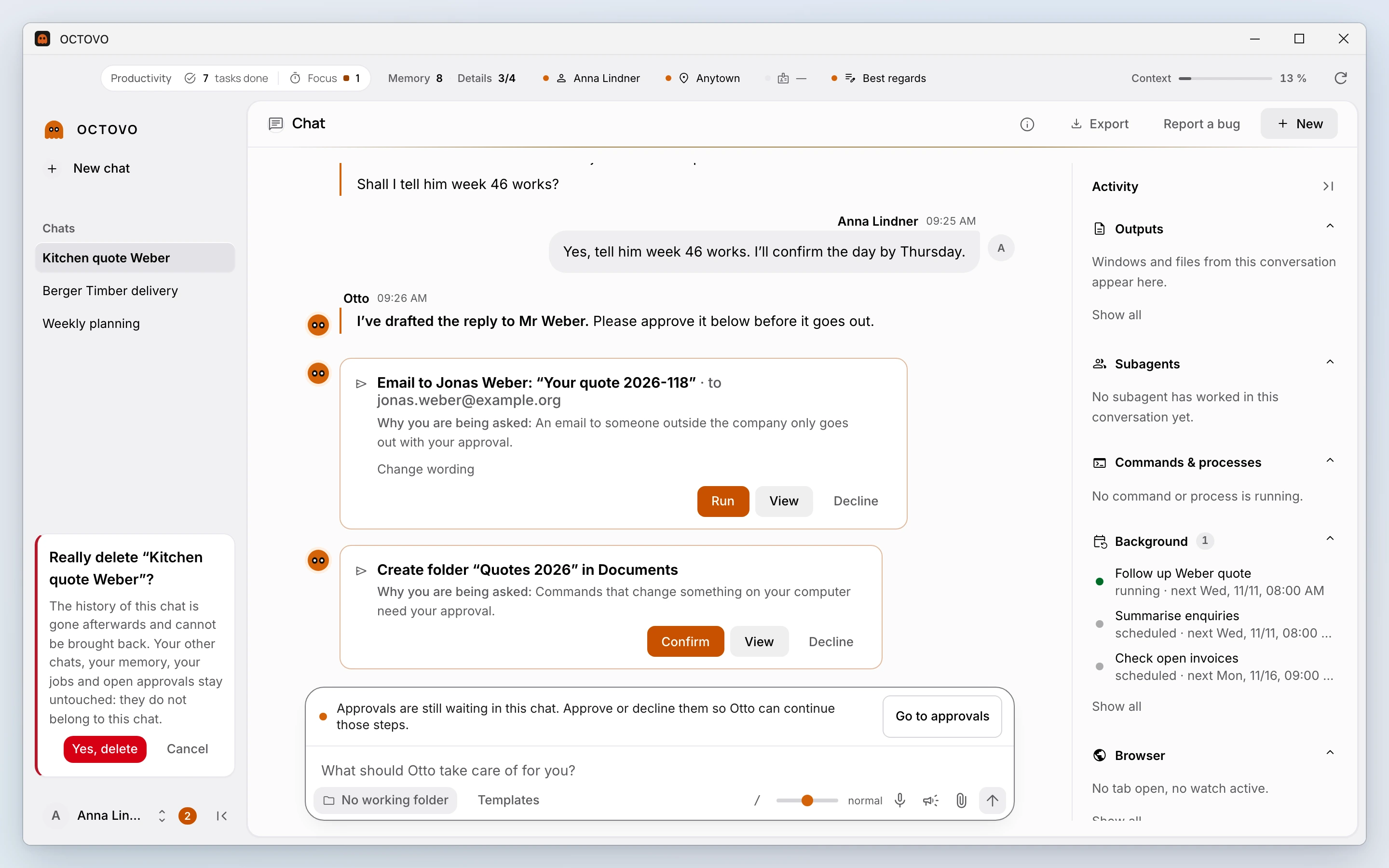
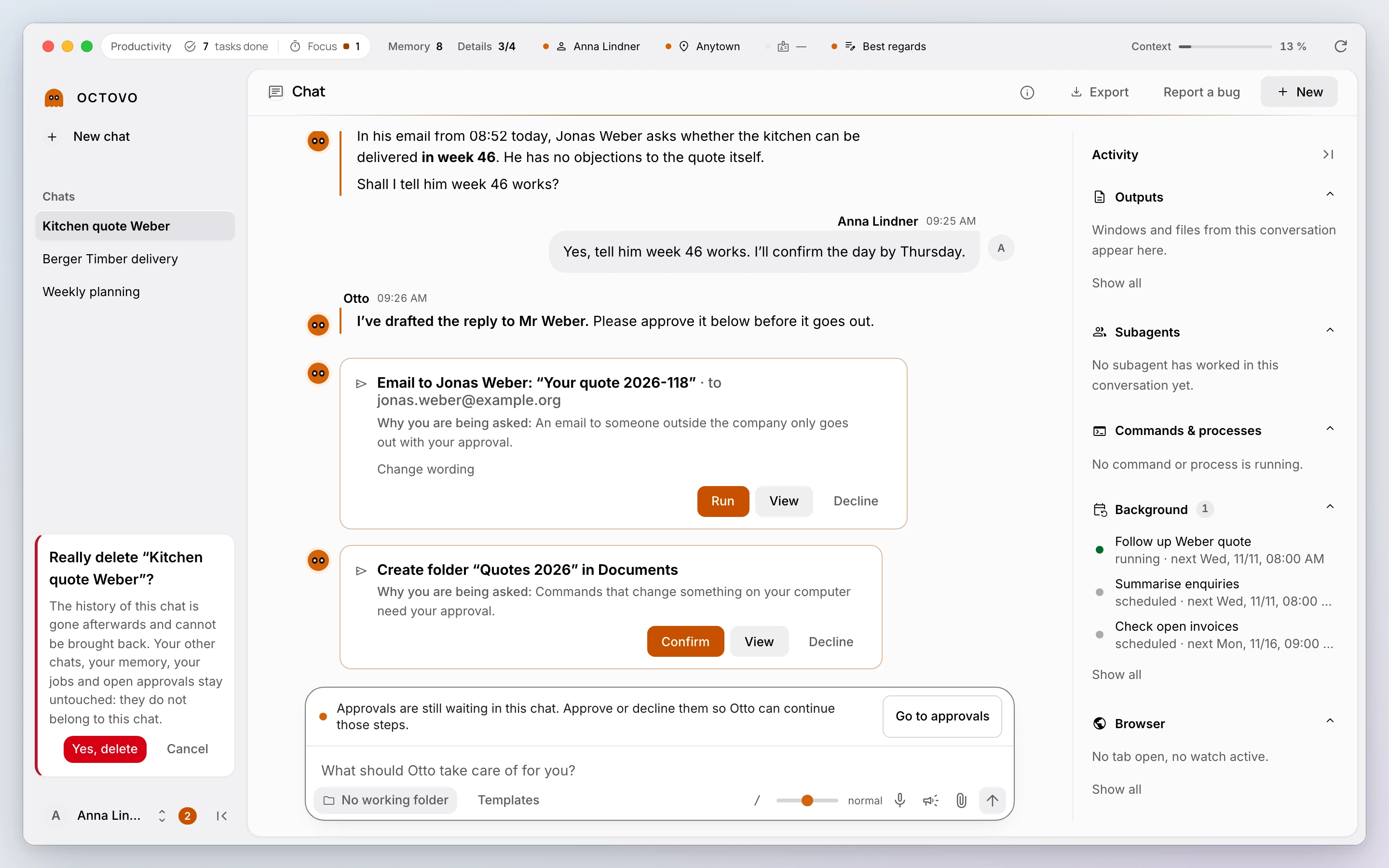
Double-click the name to rename a chat. When you delete, OCTOVO asks once more. Only the history of this chat is deleted, and this cannot be undone. Other chats, the memory, jobs and approvals stay.
What you see:
- What should this chat be called? field for the new name, confirm with “Apply”.
- Delete asks whether you really want to delete the chat.
- Yes, delete deletes the history of this chat for good.
Export chat
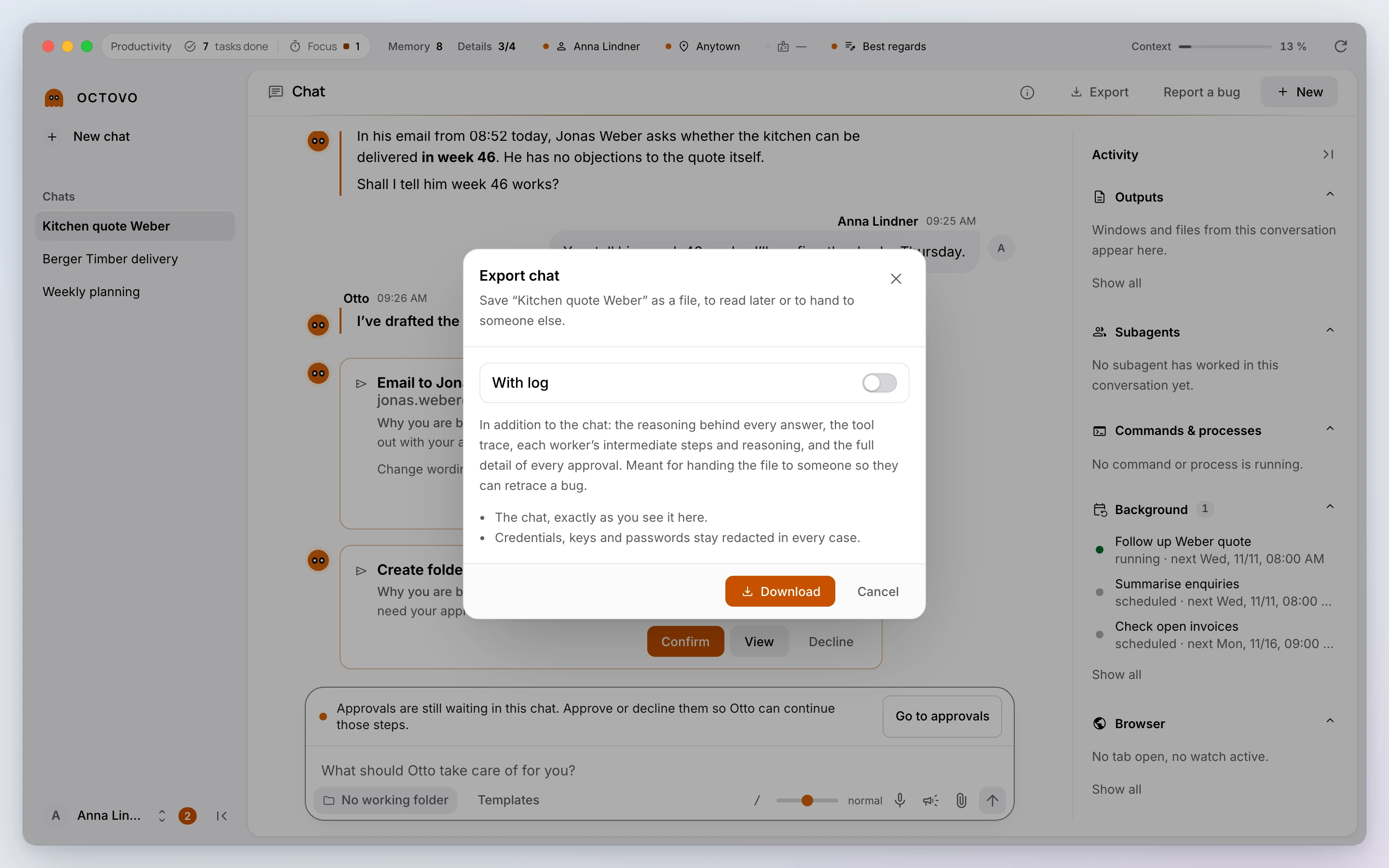 Windows
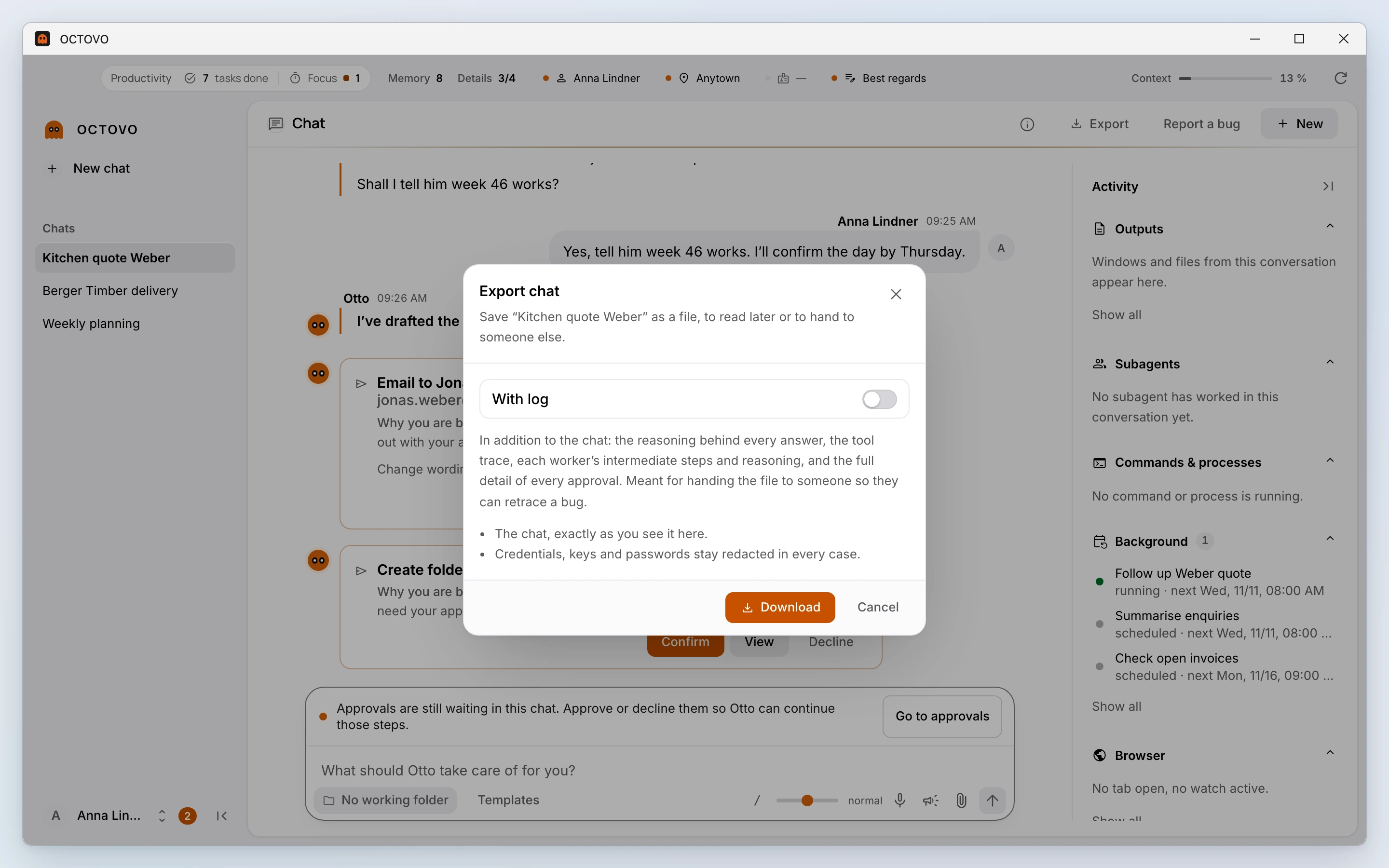
You can save a chat as a file, for example for your records. With the log, the file also contains the approvals, the reasoning and the tool steps.
What you see:
- With log includes approvals, reasoning and tool steps.
- Download saves the file.
← Back: Working in a chat · Next: Attachments and dictation →