Working with your assistant
Browser work
Your assistant gets things done on websites.
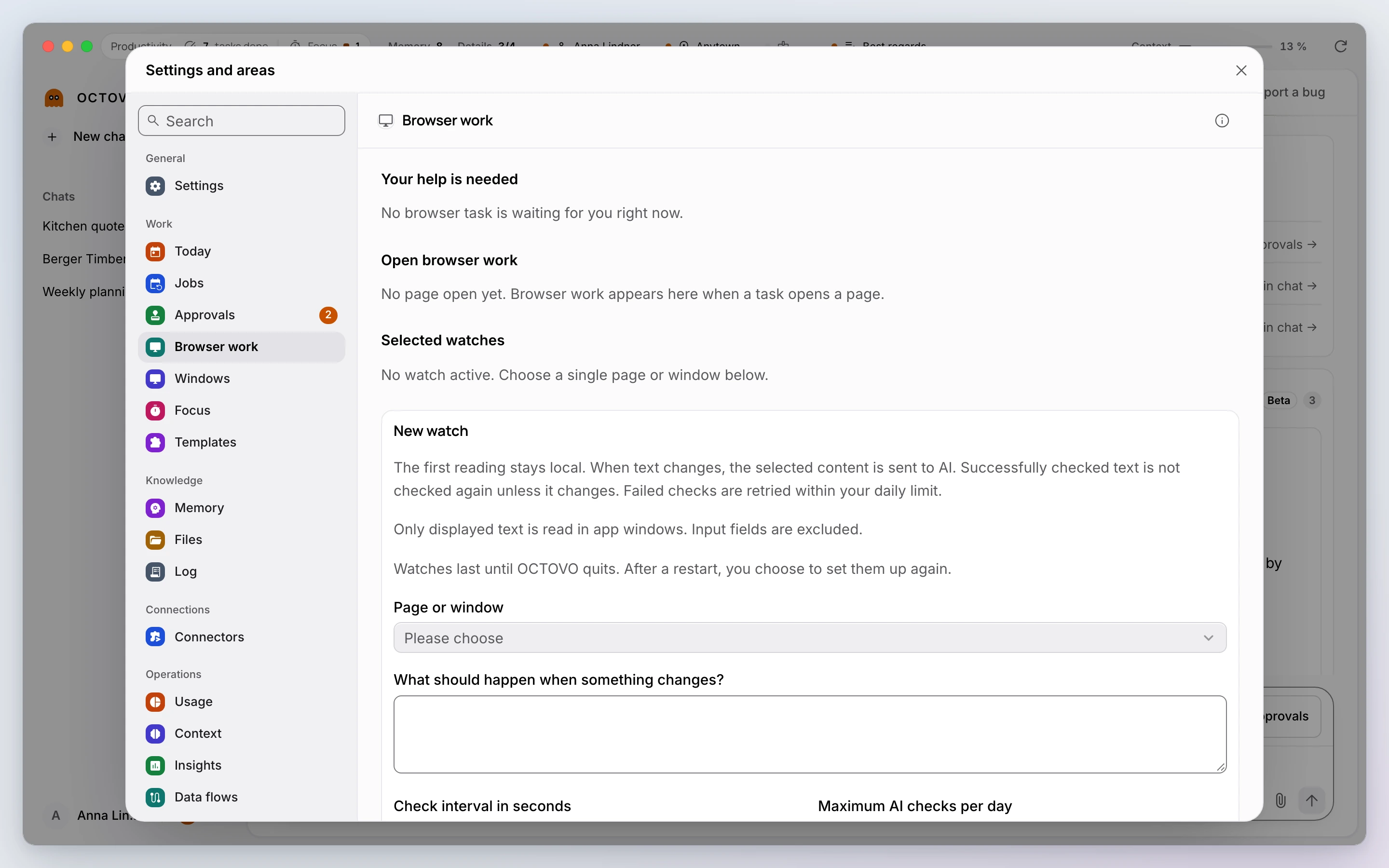
Some work can only be done on a website, such as checking a price or preparing a form. The “Browser work” window shows open pages, where your help is needed, and the watches you have set up on purpose.
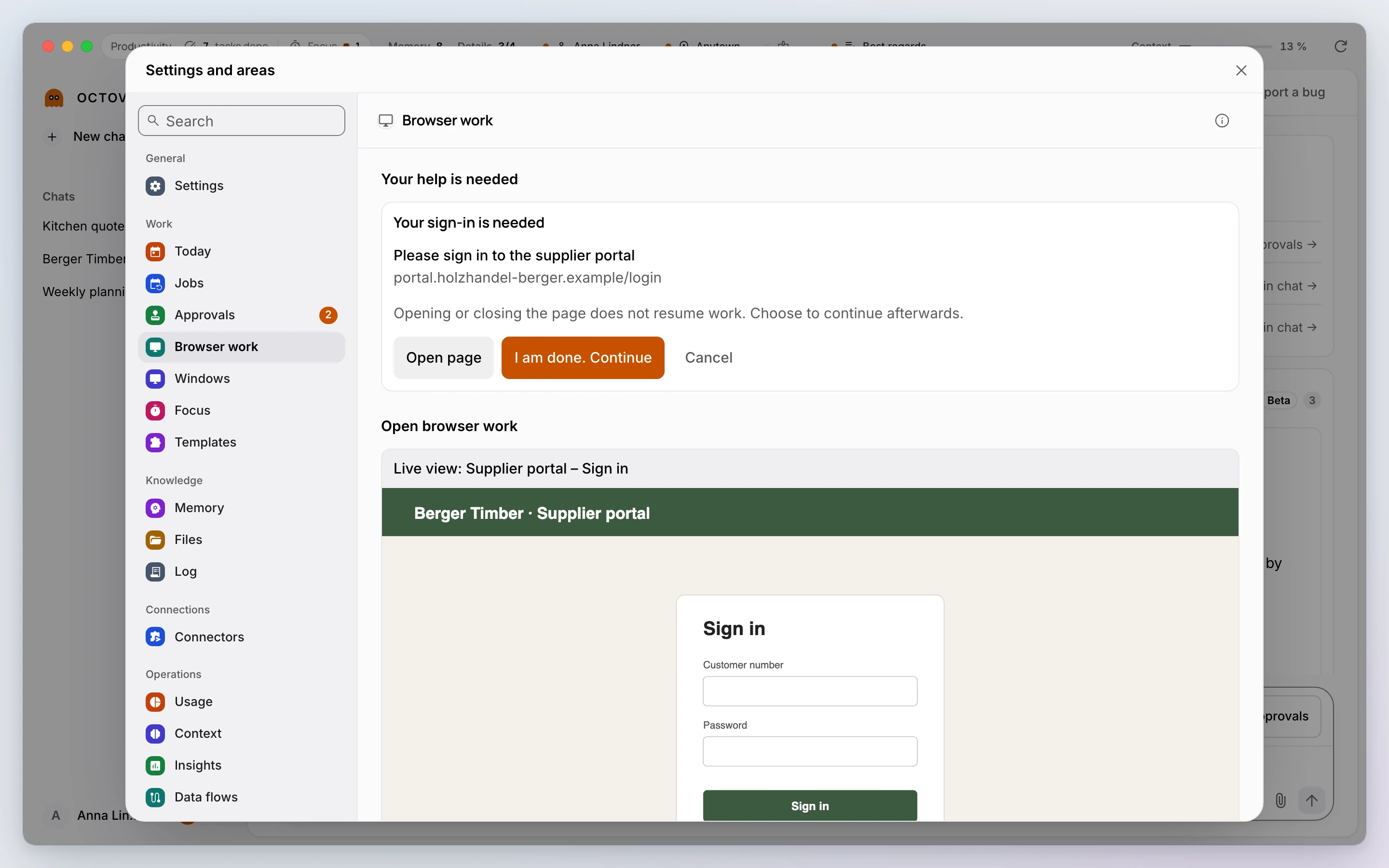
Your help is needed
 Windows
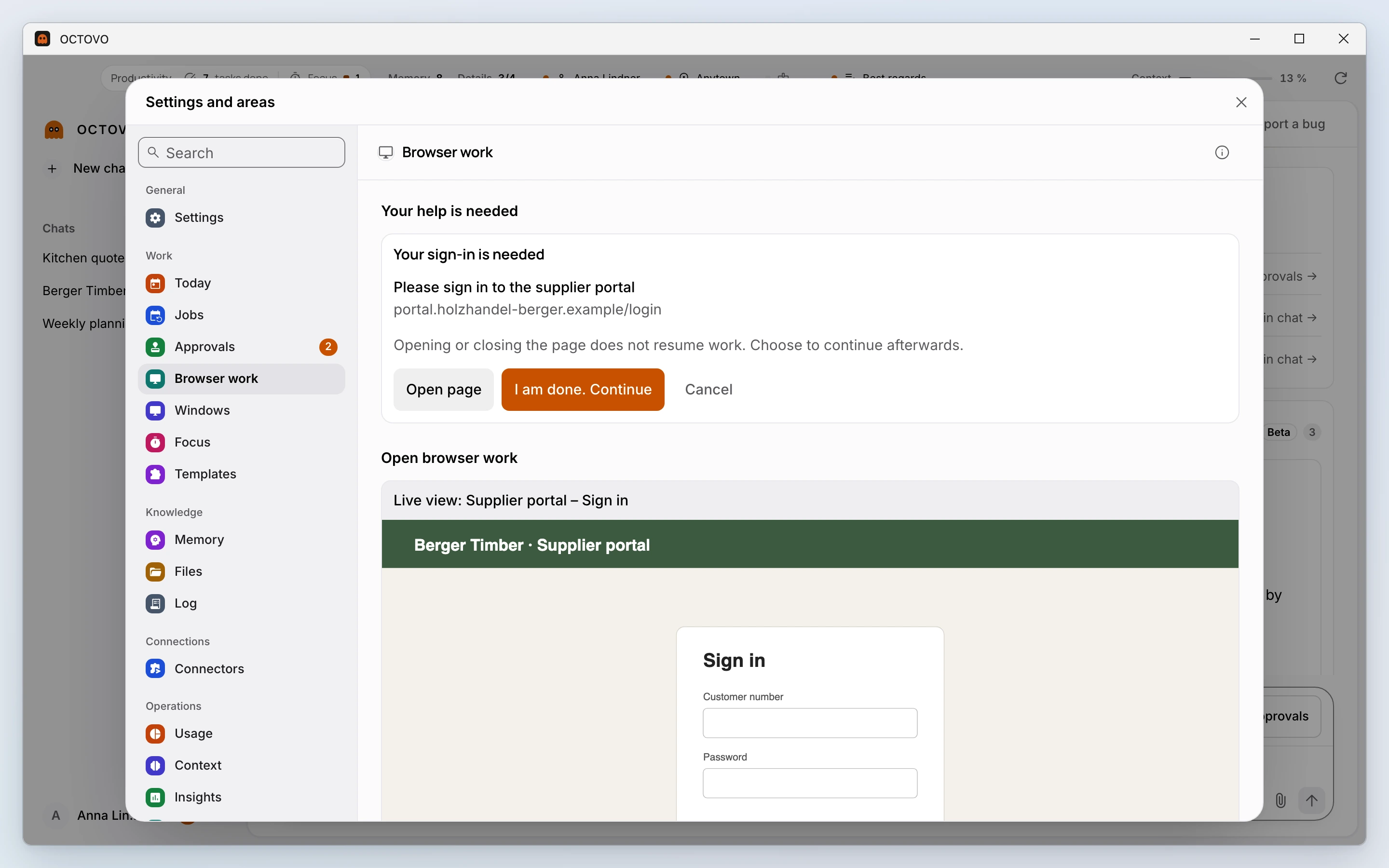
For a sign-in, a confirmation, a human check or a payment, your assistant does not carry on by itself. It waits for you. Opening or closing the page does not resume work; you choose to continue afterwards.
What you see:
- Your help is needed list of browser work waiting for you, with the reason.
- I am done. Continue the work goes on.
- Cancel the work is ended.
- Live view shows the current picture of the page. Hide, Enlarge or Shrink.
- Open browser work all pages currently open for a job.
Watches
 Windows
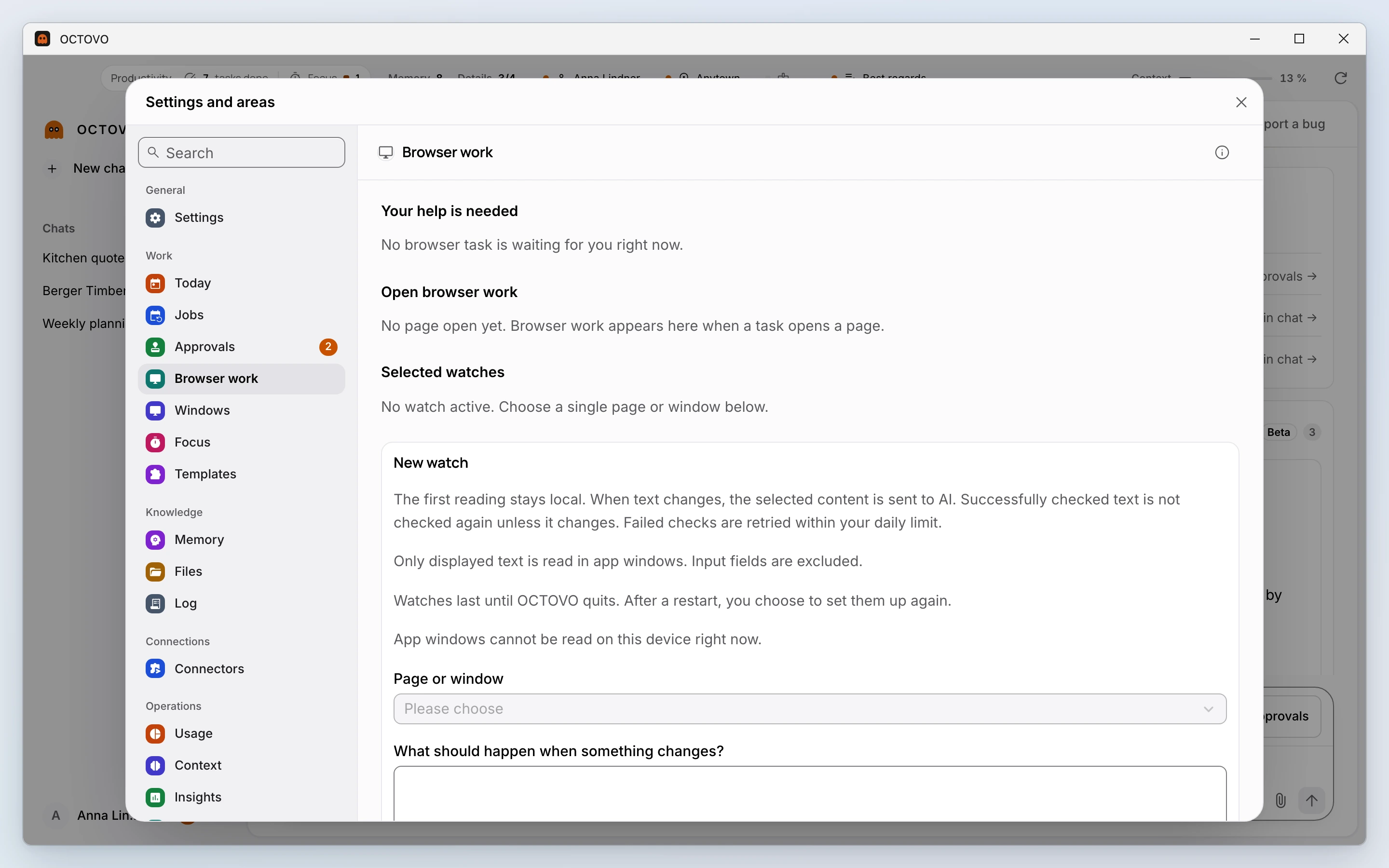
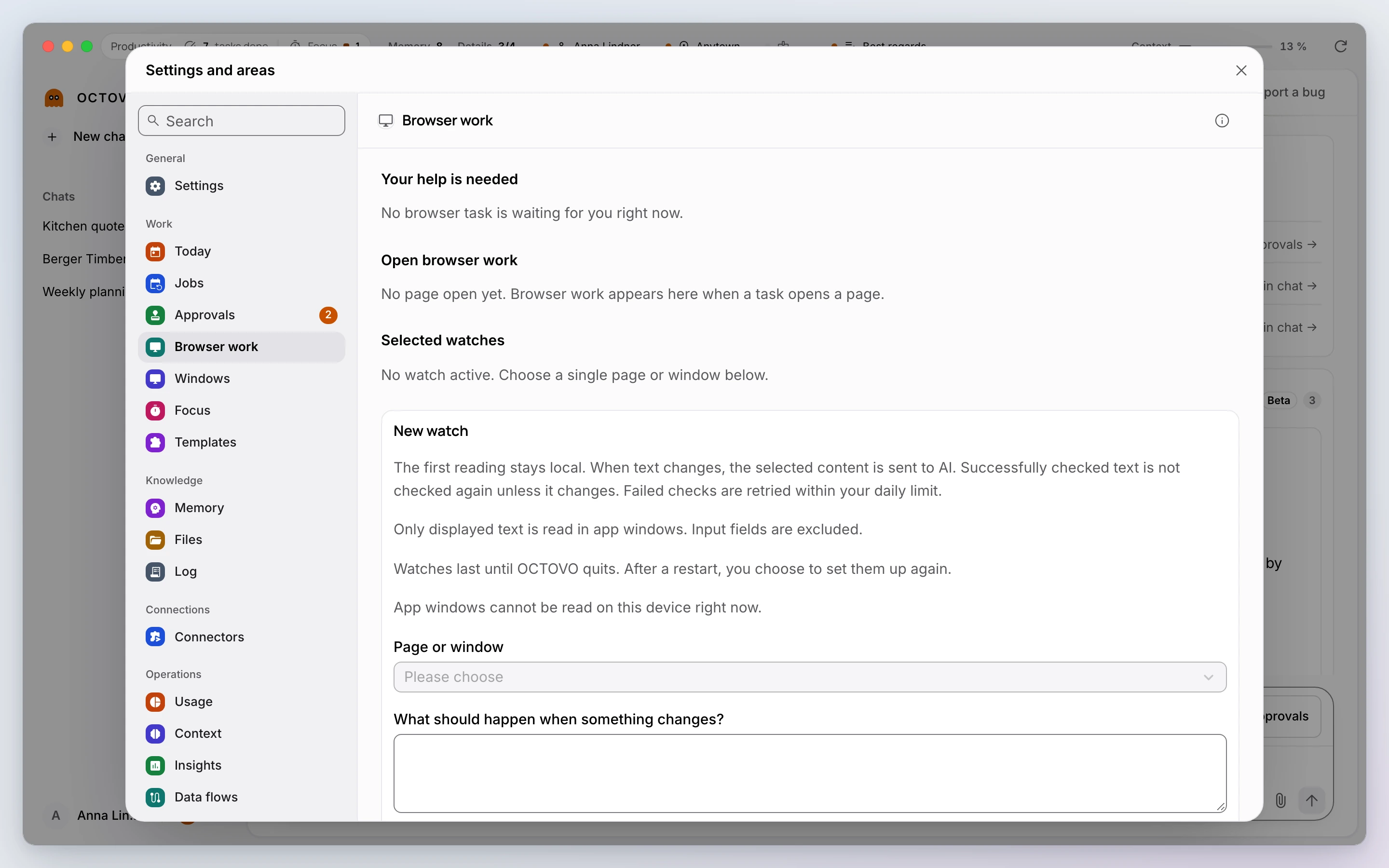
A watch observes a single page and reports when something changes. The first reading stays on your device. When the text changes, the selected content is sent to AI for checking. Watches last until OCTOVO quits.
What you see:
- New watch sets up a watch.
- Page or window what is observed.
- What should happen when something changes? your instruction.
- Check interval in seconds 30 to 3,600 seconds.
- Maximum AI checks per day 1 to 100.
- Quiet hours from / until optional, overnight is supported.
- Start watch / Stop / Remove starts, stops or deletes the watch.
macOS
App windows on the Mac
On the Mac a watch can also observe an app window. Only displayed text is read; input fields are excluded. OCTOVO needs the macOS Accessibility permission for this.
What you see:
- Allow window access requests the Accessibility permission.
macOS
Control app windows
On the Mac you can allow your assistant to operate exactly one app window in the current conversation. This needs the Autopilot level, window access and Screen Recording. Images of this window are sent to the existing AI service for control. Control runs in the background: your mouse pointer stays where it is, and a separate coloured pointer shows where the click happens. The permission lasts until you stop it or quit OCTOVO.
What you see:
- Allow control of this window allows operating the chosen window.
- Allow Screen Recording requests the macOS permission.
- Task for this window describe what your assistant should do there.
- Start task the result then appears in the conversation.